Local keys, backup, and recovery
UbID keeps an encrypted local representation of the identity key in the browser. This local copy lets the browser operate with the identity without sending the private key during normal sign-in. Clearing site data, changing browsers, using private-browsing mode, or replacing the device can make that local copy unavailable.
The supplied screenshots show the English interface. The position and purpose of the controls are the same when you select Spanish or Portuguese.
How protected recovery works
The user does not have to view, copy, or transcribe a 12- or 24-word phrase during normal registration or recovery.
UbID protects recovery using these controls:
- The local identity is encrypted in the browser with the user’s password.
- Distributed recovery uses a Shamir 3-of-5 scheme: protected fragments are assigned to five guardians, and at least three authorized fragments are needed for recovery.
- No single guardian has enough information to complete the reconstruction alone.
- Password authentication identifies the account before recovery begins.
- FaceTec confirms the registered person before the required fragments are released.
- Reconstruction and validation happen inside the browser. The recovered identity is encrypted again and saved locally; it is not displayed to the user as recovery words.
Requirements for cloud/gateway recovery
Before starting, confirm that:
- The UbID account is active.
- Cloud/gateway recovery was enabled for the identity.
- FaceTec was enrolled before the local identity became unavailable.
- You know the exact User ID and account password.
- The device has a camera, an updated supported browser, and a stable Internet connection.
- You are using a trusted device and a private location for facial verification.
This process imports an existing identity into the current browser. It does not create a new account.
Import from clouds/gateways
1. Open the key import option
When the browser has no local identity, the access page shows an empty Self-sovereign identity list. Select Import your key here near the bottom of the panel.
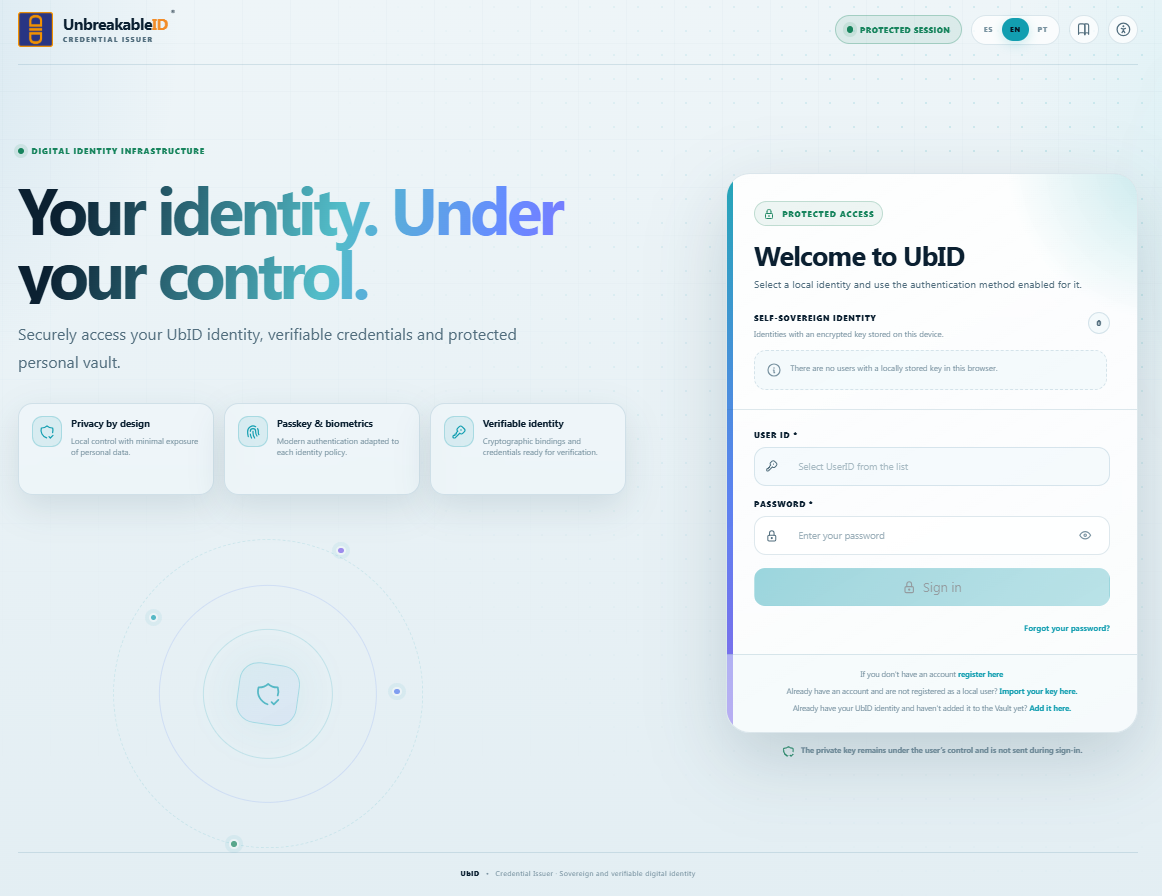
Use the import link when the account already exists but its local identity is not available in this browser.
2. Choose the recovery method
UbID opens Import secret key with two options. Select Import from clouds/gateways.
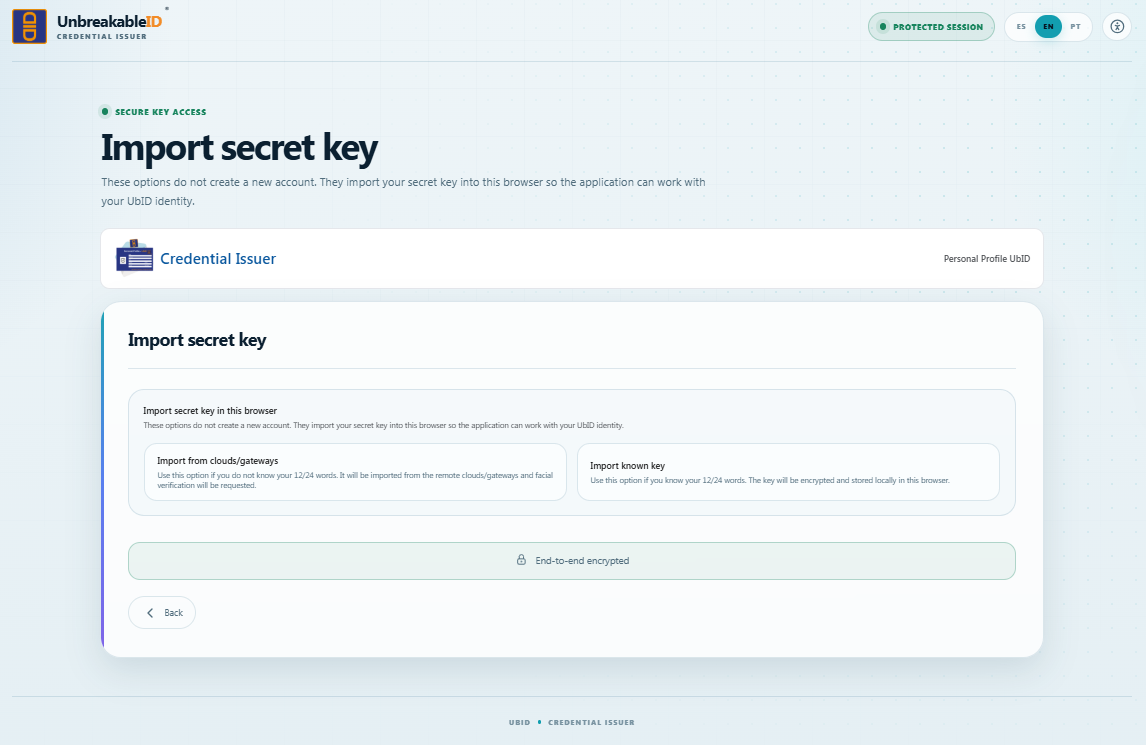
The clouds/gateways option is the normal recovery path for a user who does not handle recovery words.
Do not select Import known key as part of this procedure. That option is explained in About the 12/24-word option.
3. Identify the account
The Recover saved key dialog requests the account details.

- Enter the exact User ID of the existing account. The interface can normalize the
.ubid.appsuffix. - Enter the account Password.
- Use the eye button only when nobody else can see the screen.
- Select Recover when the button becomes active.
The password is used to authenticate the account and protect the recovered local copy. Do not use a different or newly invented password in this dialog.
4. Confirm the FaceTec prerequisite
Cloud/gateway recovery requires an existing FaceTec enrollment. If it is not present, the dialog displays an error and recovery stops.
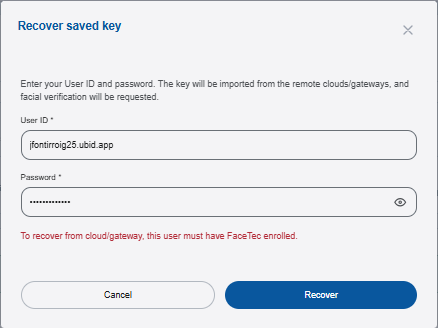
Example: recovery cannot continue because FaceTec was not previously enrolled for this User ID.
If this message appears, do not repeatedly submit the form. Use another active device to review the identity’s FaceTec status, when available, or contact the authorized UbID support channel for an approved alternative. Support cannot bypass facial verification or ask you for recovery words.
5. Start facial verification
When the identity has FaceTec enrolled, UbID opens the identity-verification step. Select Verify face with FaceTec.

FaceTec must confirm the registered 3D biometric before protected recovery can continue.
Allow camera access if the browser requests it. Make sure your face is visible, remove anything that unnecessarily covers it, and use even lighting without a bright light behind you.
6. Complete the video selfie
Position your face inside the oval, select I’m ready, and follow the on-screen instruction to move closer.
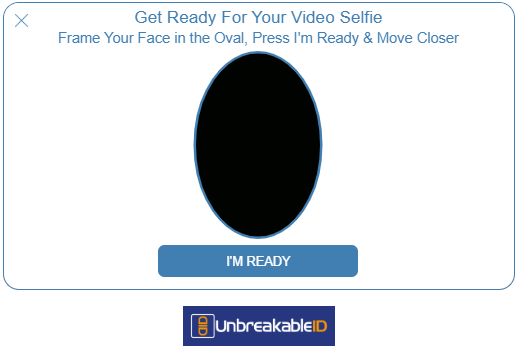
Keep the device stable and follow the movement instruction until FaceTec completes the capture.
Do not close the browser, change tabs, or use the Back button during capture.
7. Wait for local recovery to finish
After successful FaceTec verification, UbID performs the protected recovery automatically:
- The recovery service authorizes the required guardian fragments.
- The browser obtains enough protected fragments to satisfy the 3-of-5 threshold.
- The identity is reconstructed and validated locally.
- The recovered local identity is encrypted with the account password and saved in this browser.
- UbID confirms success and returns to the access page.
The application does not display the 12/24 words during these steps. When the local identity appears in the access list, select it and perform a complete sign-in test.
About the 12/24-word option
The Import known key card is visible on the method-selection screen because the product can recognize a compatible known key in controlled or legacy scenarios. It is not part of the normal end-user recovery procedure.
During the standard UbID lifecycle:
- The user is not shown the 12/24 words.
- The protected recovery material is managed automatically.
- The local copy remains encrypted in the browser.
- The distributed recovery protection is held across five guardians under a 3-of-5 threshold.
For that reason, this manual intentionally stops at the selection screen and does not instruct users to guess, request, reveal, or enter recovery words.
Troubleshooting
| Situation | What to do |
|---|---|
| FaceTec must be enrolled | Recovery cannot continue by clouds/gateways for this identity. Use another active device to check enrollment or contact authorized support for an approved route. |
| Incorrect User ID or password | Verify the complete User ID and use the existing account password. Do not create another account. |
| Cloud/gateway recovery is not configured | Use another approved recovery route or contact authorized support. |
| Camera is blocked | Allow camera access for the UbID origin in the browser and operating-system privacy settings, then restart the FaceTec step. |
| Face verification did not complete | Retry in even lighting, keep the device stable, center the face, and follow the movement prompt exactly. |
| Not enough guardian fragments are available | Wait and retry later. If the condition persists, contact operations or authorized support; a single guardian cannot complete recovery. |
| The key is already stored | Return to the access page and select the local identity; recovery is unnecessary in that browser. |
| Recovery succeeds but the identity does not appear | Reload the access page on the same browser and origin. Do not clear site data. If it remains absent, contact support before trying another registration. |
Before clearing browser data or replacing a device
- Confirm that cloud/gateway recovery is enabled.
- Confirm that FaceTec enrollment is active while you still have access.
- Keep access to the registered email and phone.
- Test sign-in on the active browser.
- Do not clear site data until an approved recovery route is available.