Language and appearance
The Issuer sign-in screen lets you change the interface language and visual theme before authenticating. These preferences affect only the presentation of the application in the current browser; they do not modify the identity, credentials, password, or authentication method.
Change the language
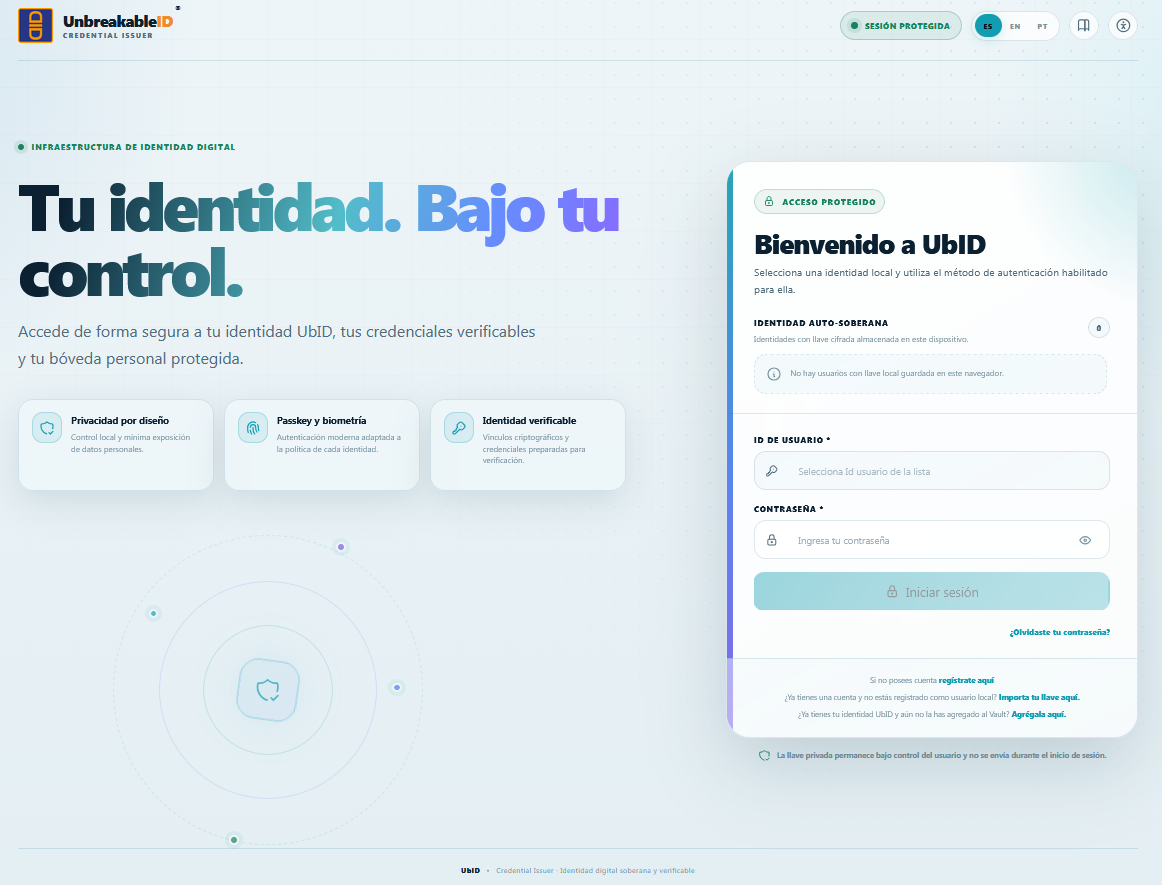
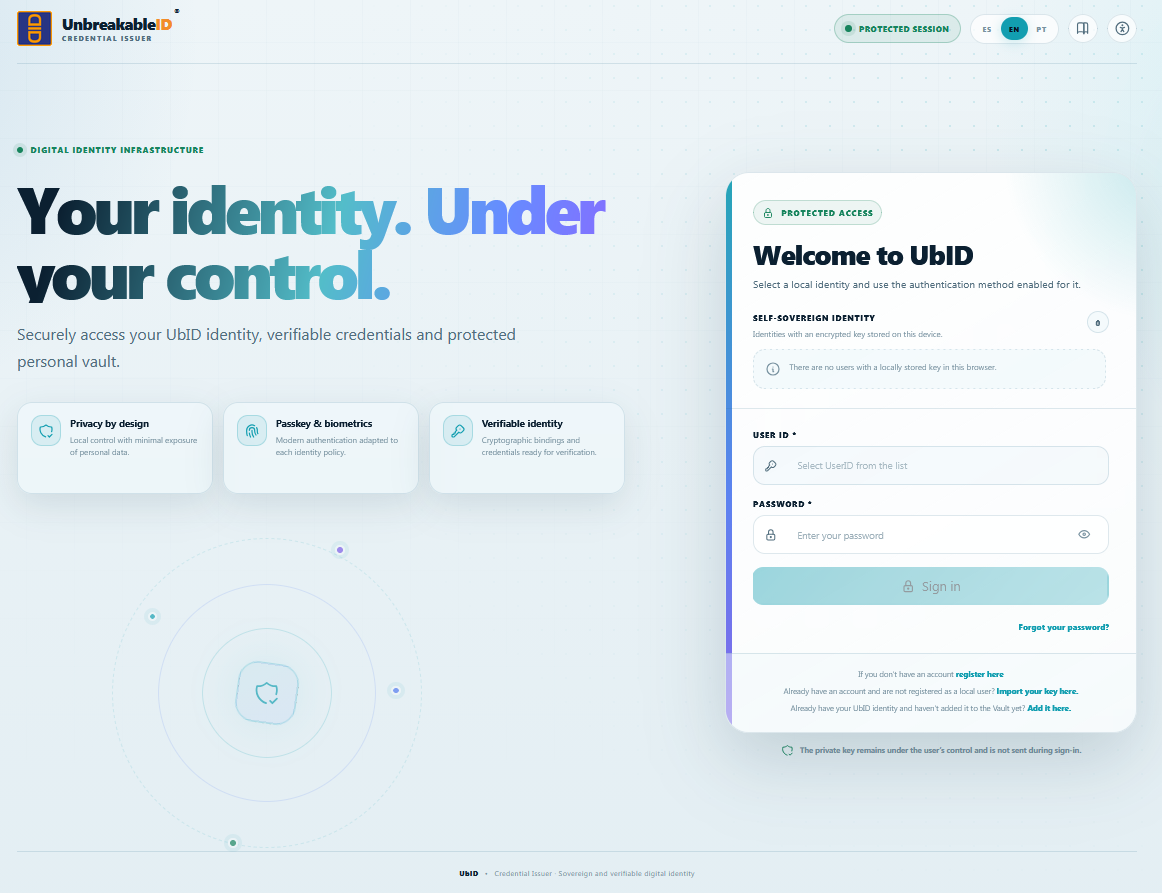
Use the ES, EN, and PT controls in the upper-right corner:
- ES displays the interface in Spanish.
- EN displays the interface in English.
- PT displays the interface in Portuguese.
The selected language is highlighted and the visible text changes immediately. The preference is saved locally in the browser, so it may return to the default after browser data is cleared or when a private browsing window is used.
Spanish
English
Portuguese
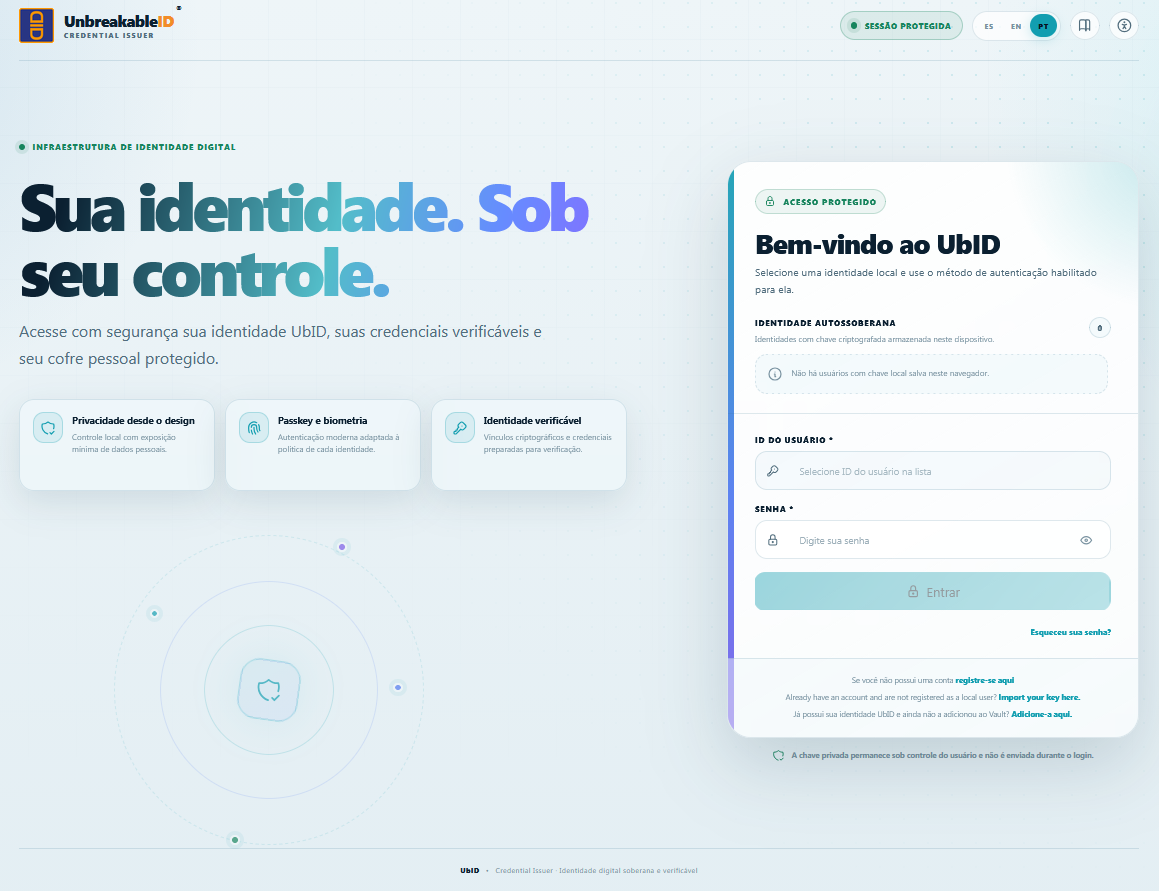
Changing the interface language does not translate a User ID, credential value, personal name, or information supplied by an external issuer.
Change the visual theme
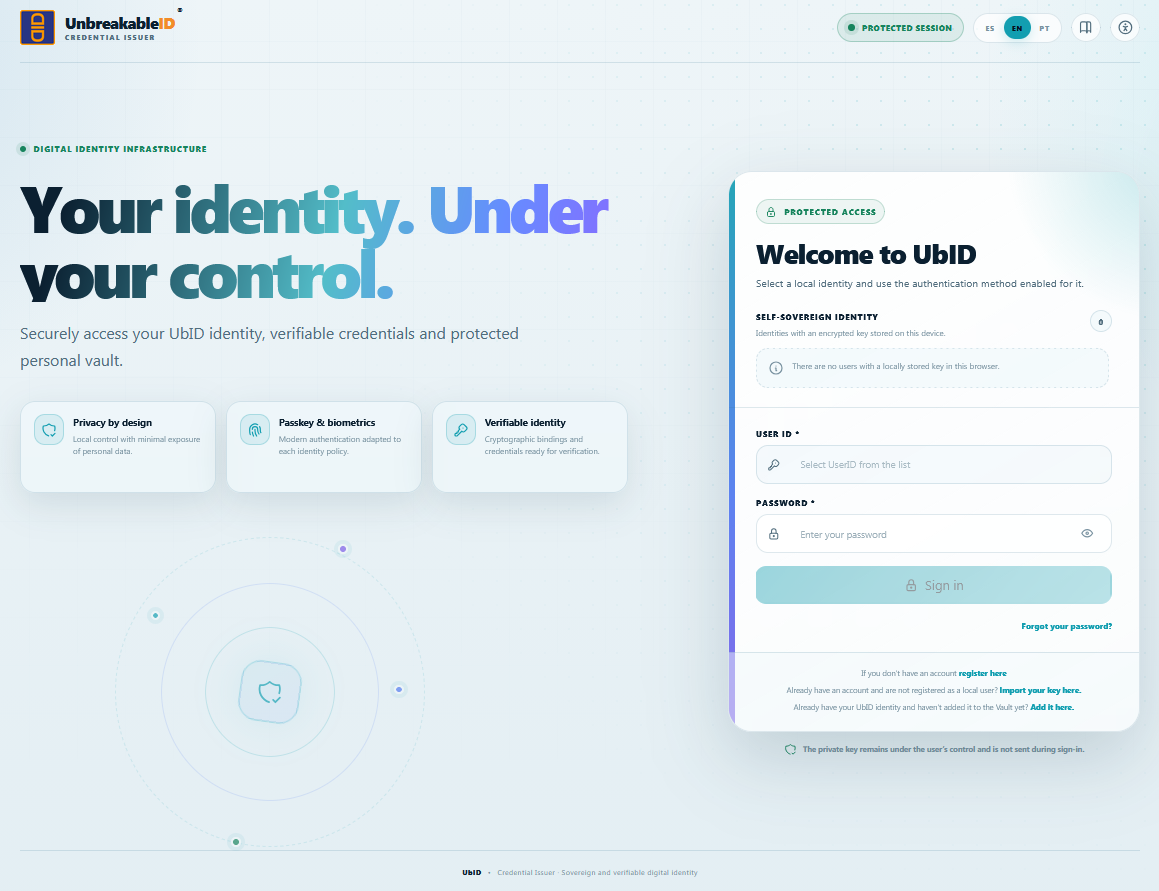
Select the accessibility icon at the far right of the header and choose the appearance that gives you the clearest reading experience. The theme is applied immediately and stored in this browser.
Light
Uses the standard light background and the UbID color palette.
High contrast light
Uses a light background, dark text, and stronger borders to increase separation between controls.
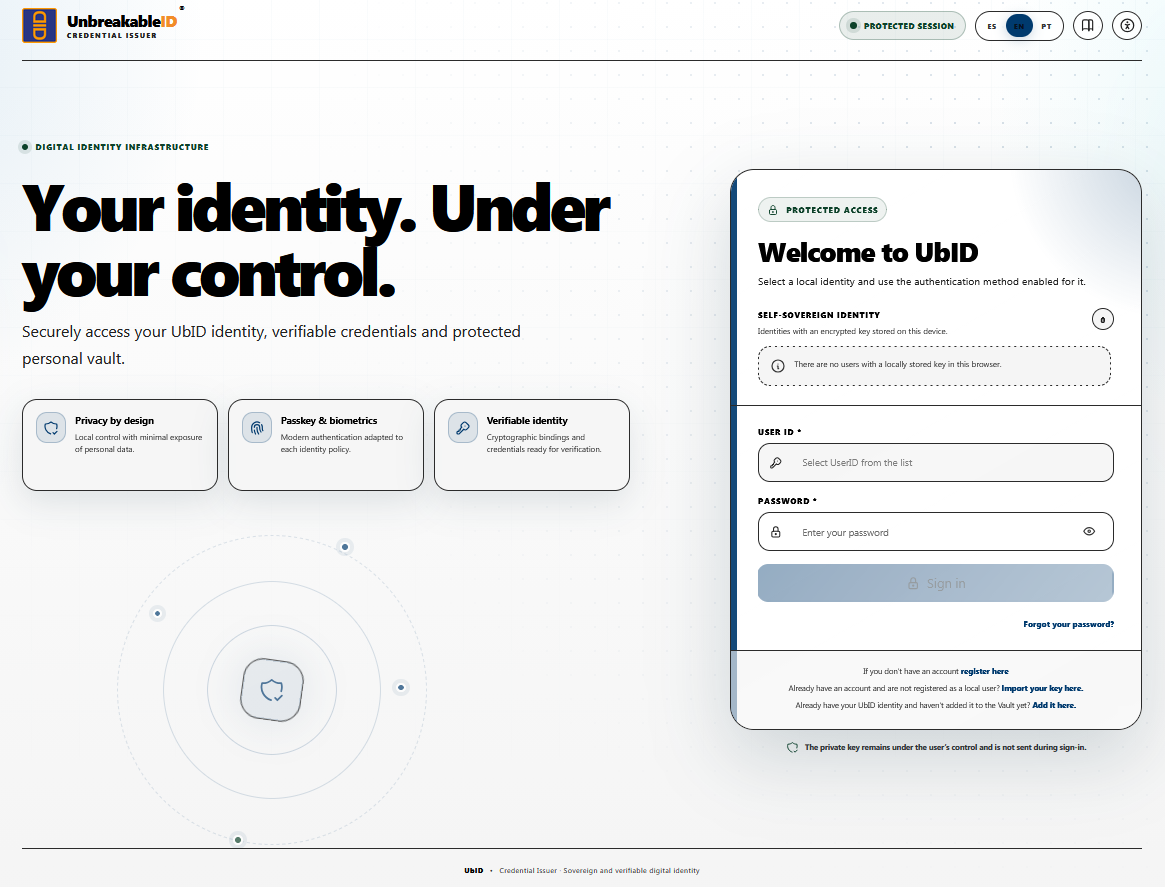
Dark
Uses a dark background while preserving the UbID color accents.
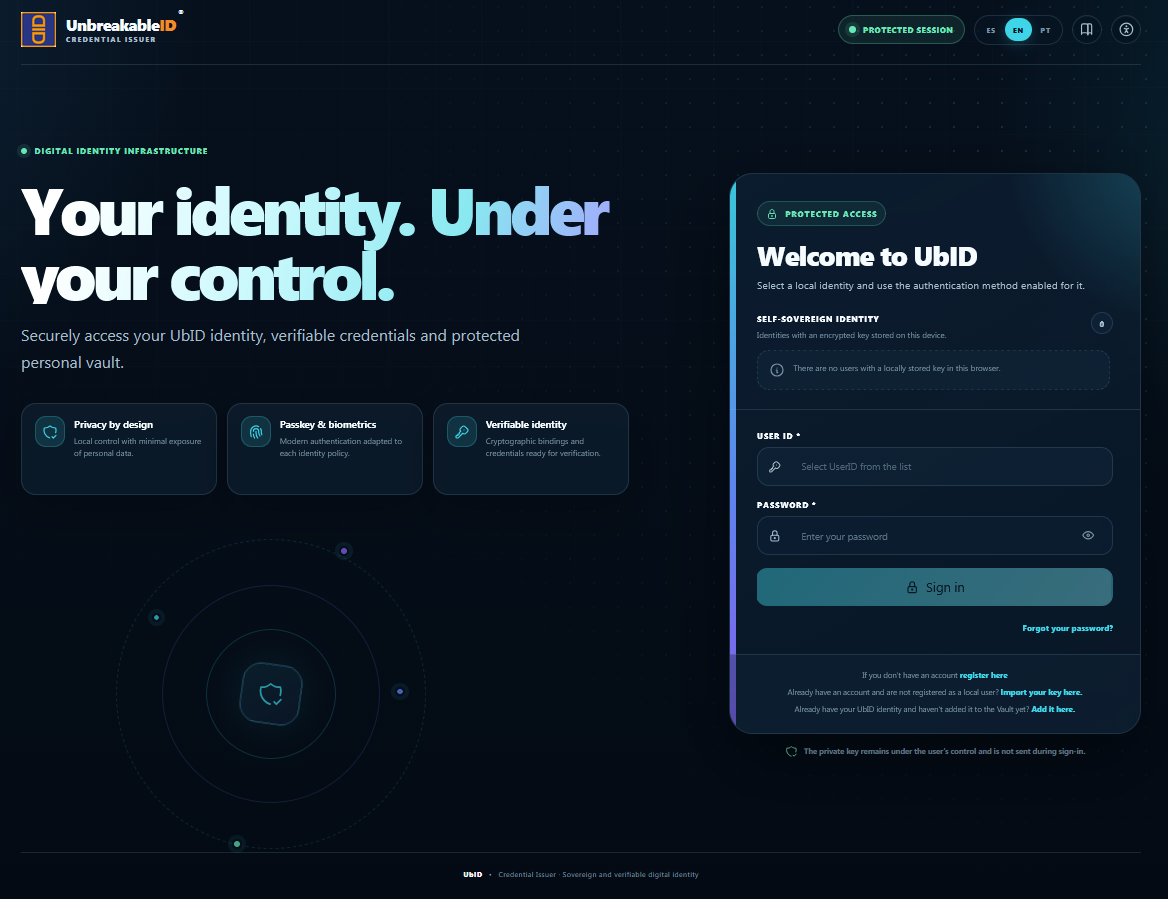
High contrast dark
Uses a predominantly black background, light text, and stronger outlines for maximum contrast.
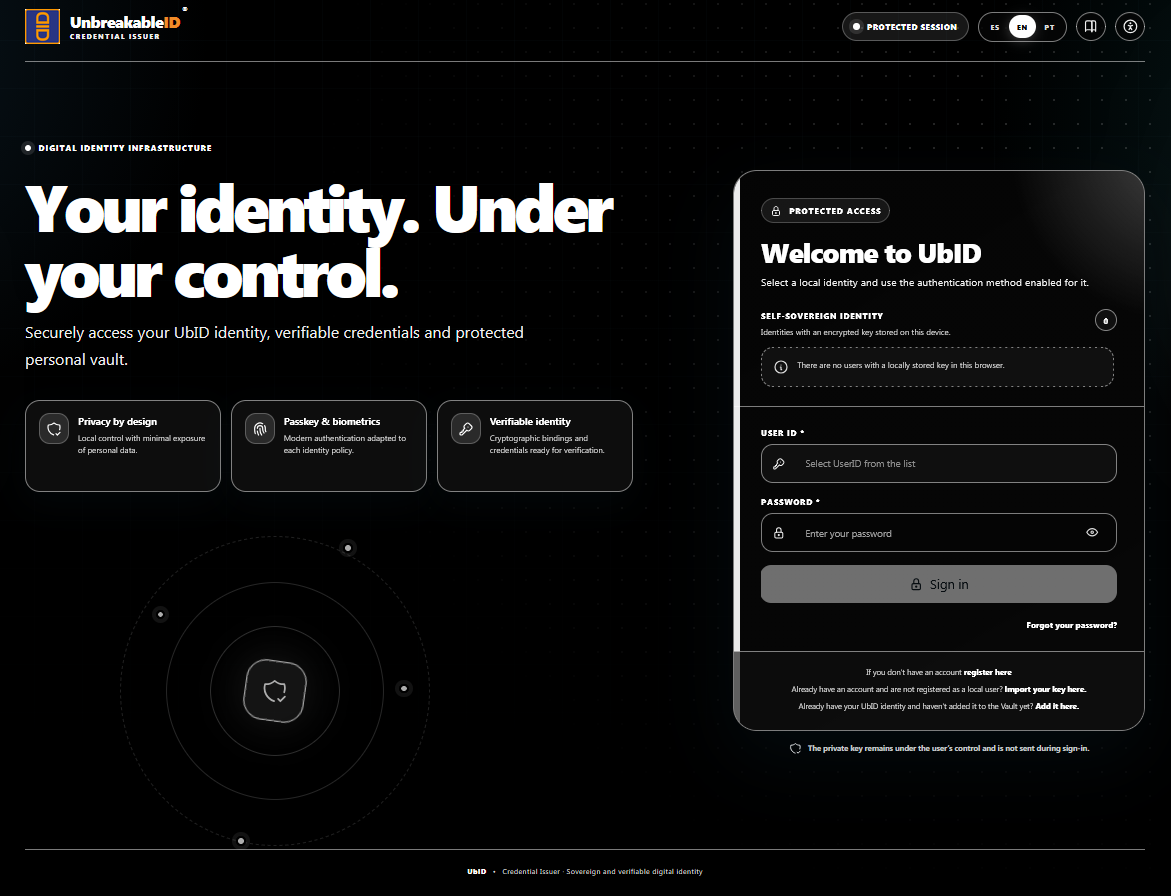
Grayscale
Removes color from the interface while preserving its structure and controls.
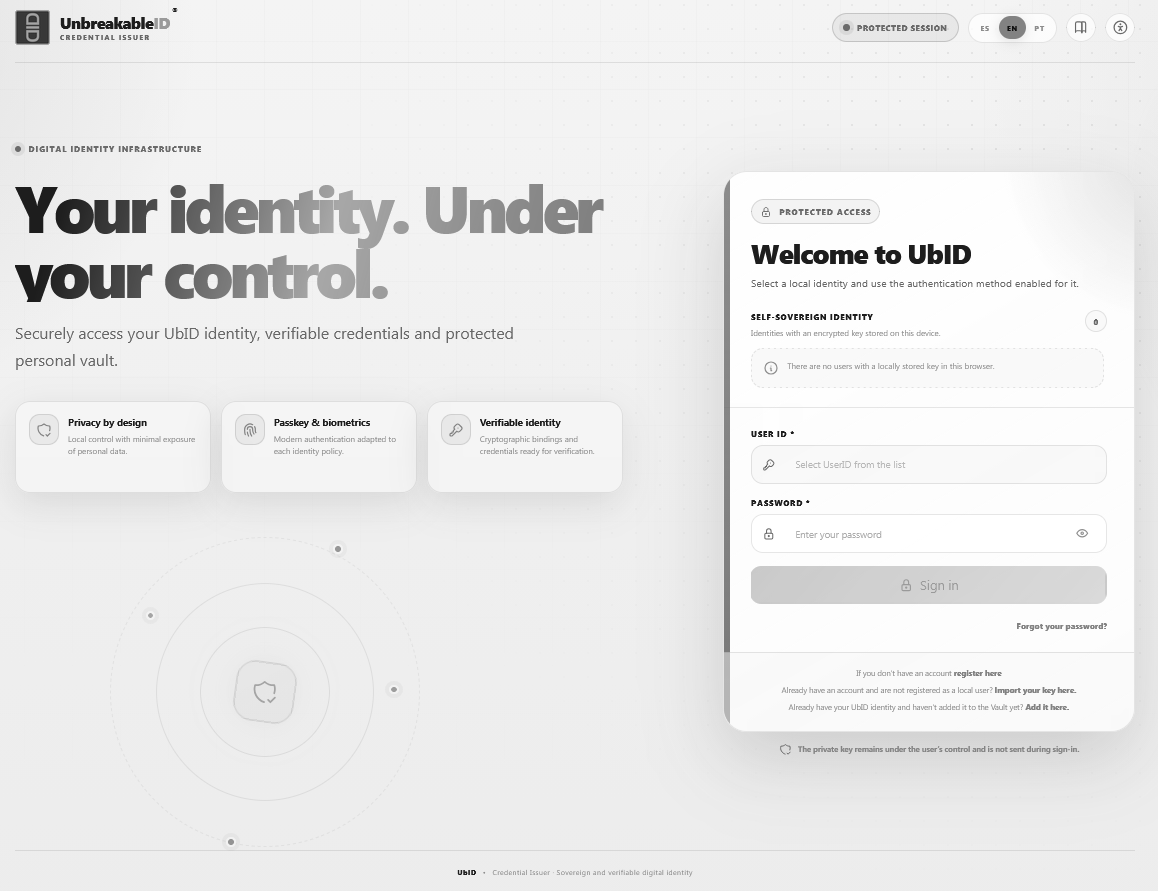
The accessibility menu also provides controls to increase or decrease text size and a Reset action. Reset restores the standard text scale and light appearance.
Check whether the browser is blocking local storage, running in private mode, or clearing site data when it closes. Selecting a language or theme does not require signing in again.
Continue with Create an account and sign in.