Add credentials
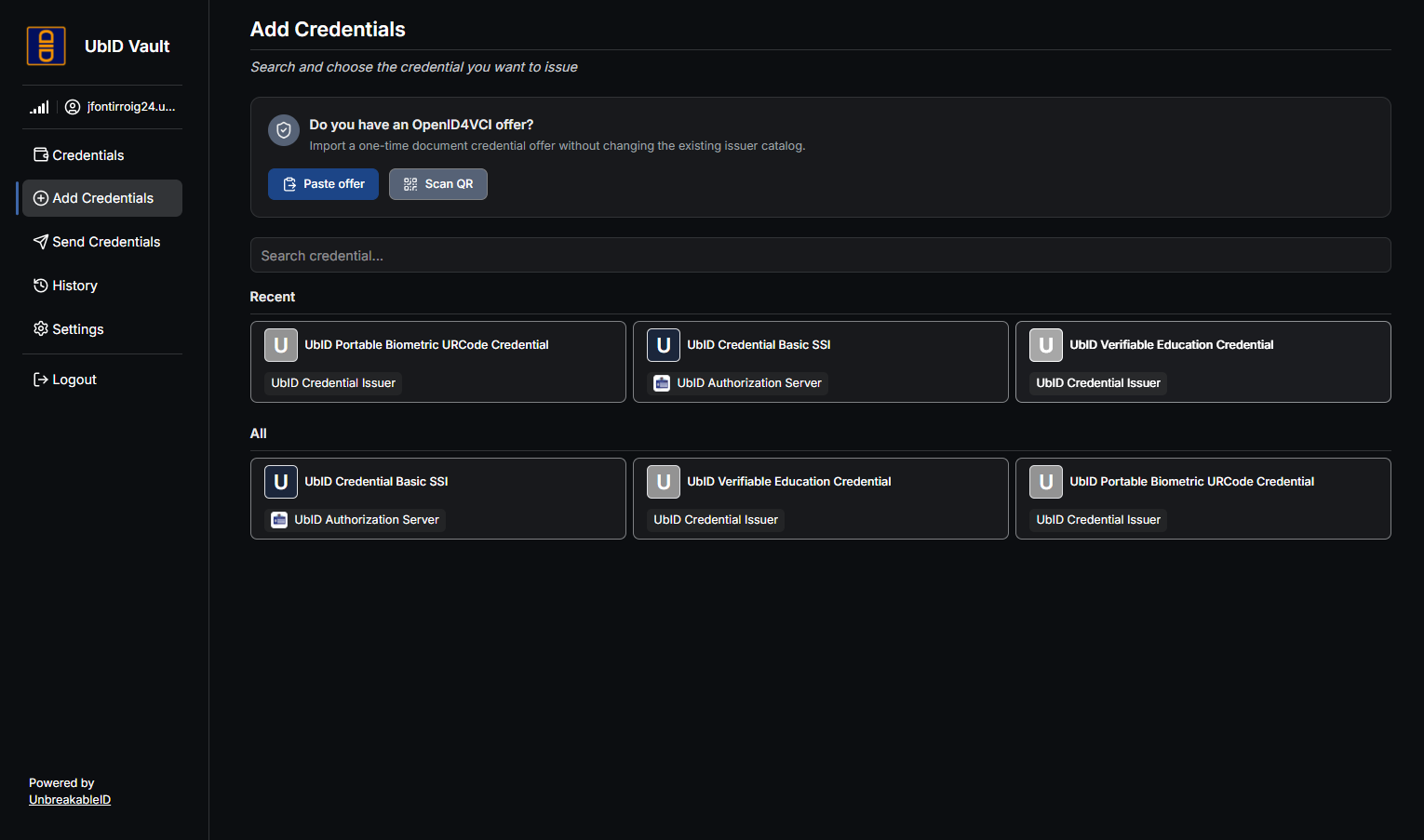
Open Add Credentials to receive a credential through OpenID4VCI. Vault supports two entry points: choosing a registered credential from the catalog or importing a one-time offer supplied by an issuer.
An internet connection is required to validate issuers, resolve offers, and complete issuance.
Choose from the catalog
Use the search field or select an entry under Recent or All. Always read the credential name and issuer shown on the card.
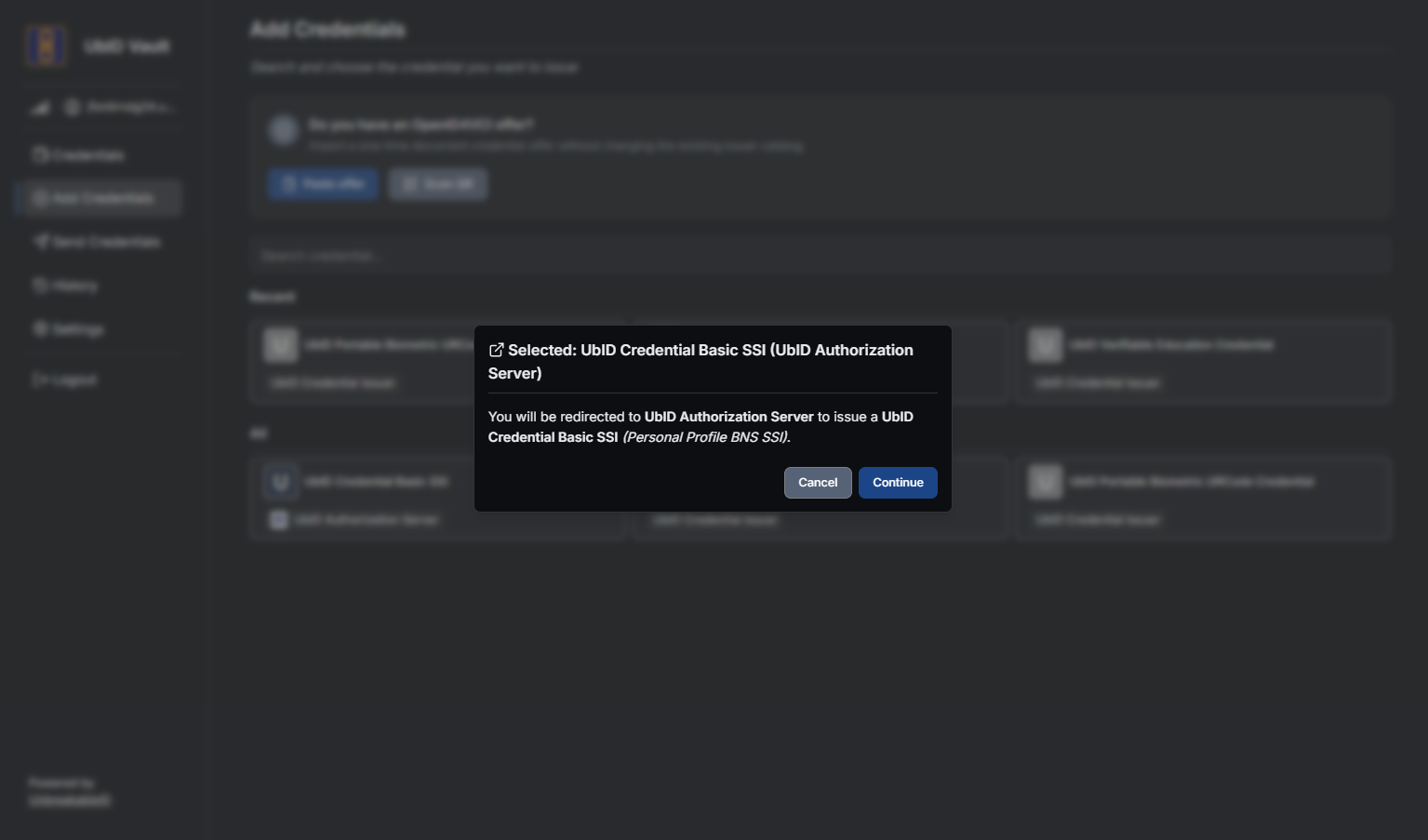
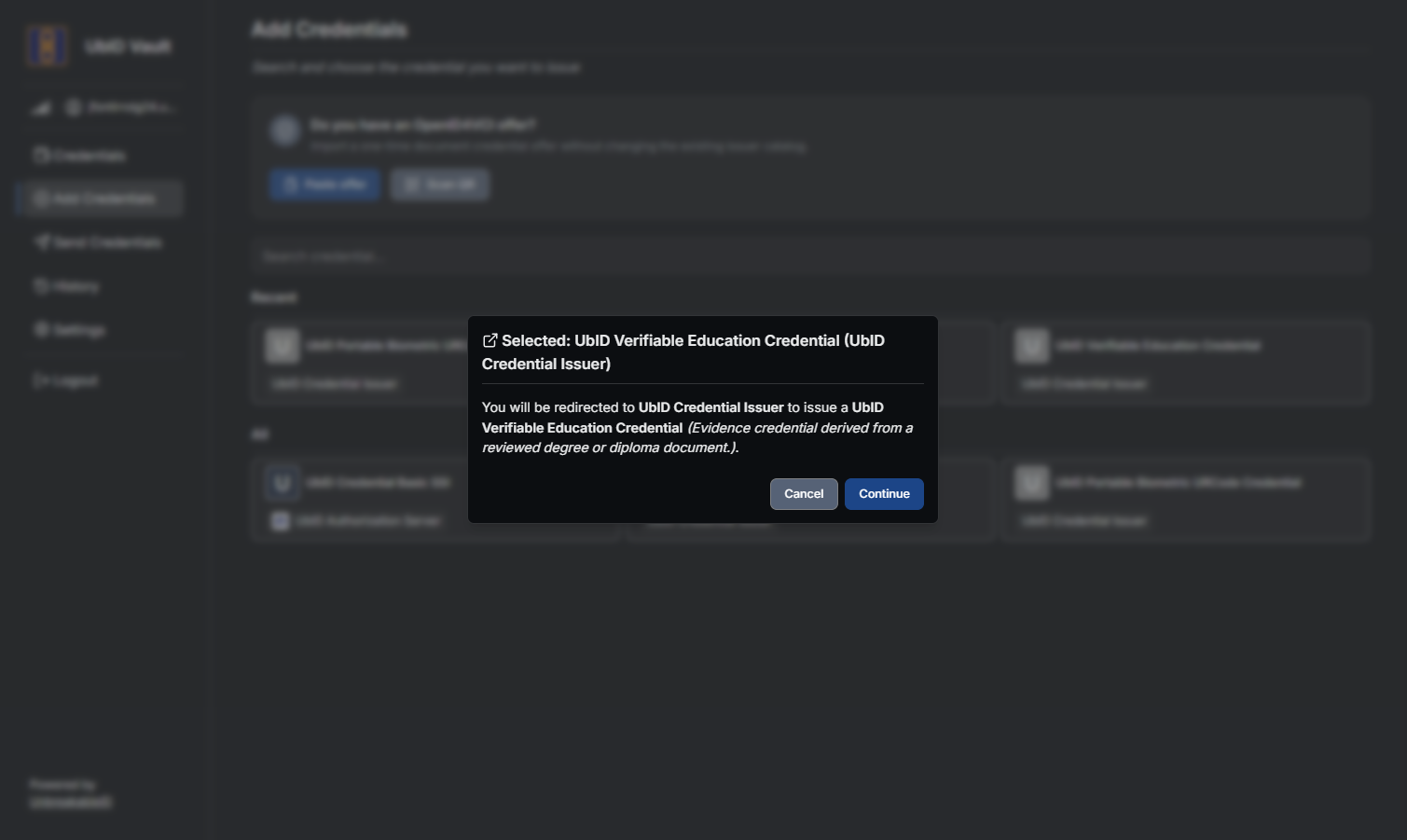
Vault asks for confirmation before leaving the application:
-
UbID Credential Basic SSI redirects to UbID Authorization Server.
-
UbID Verifiable Education Credential redirects to UbID Credential Issuer.
-
UbID Portable Biometric URCode Credential redirects to UbID Credential Issuer.
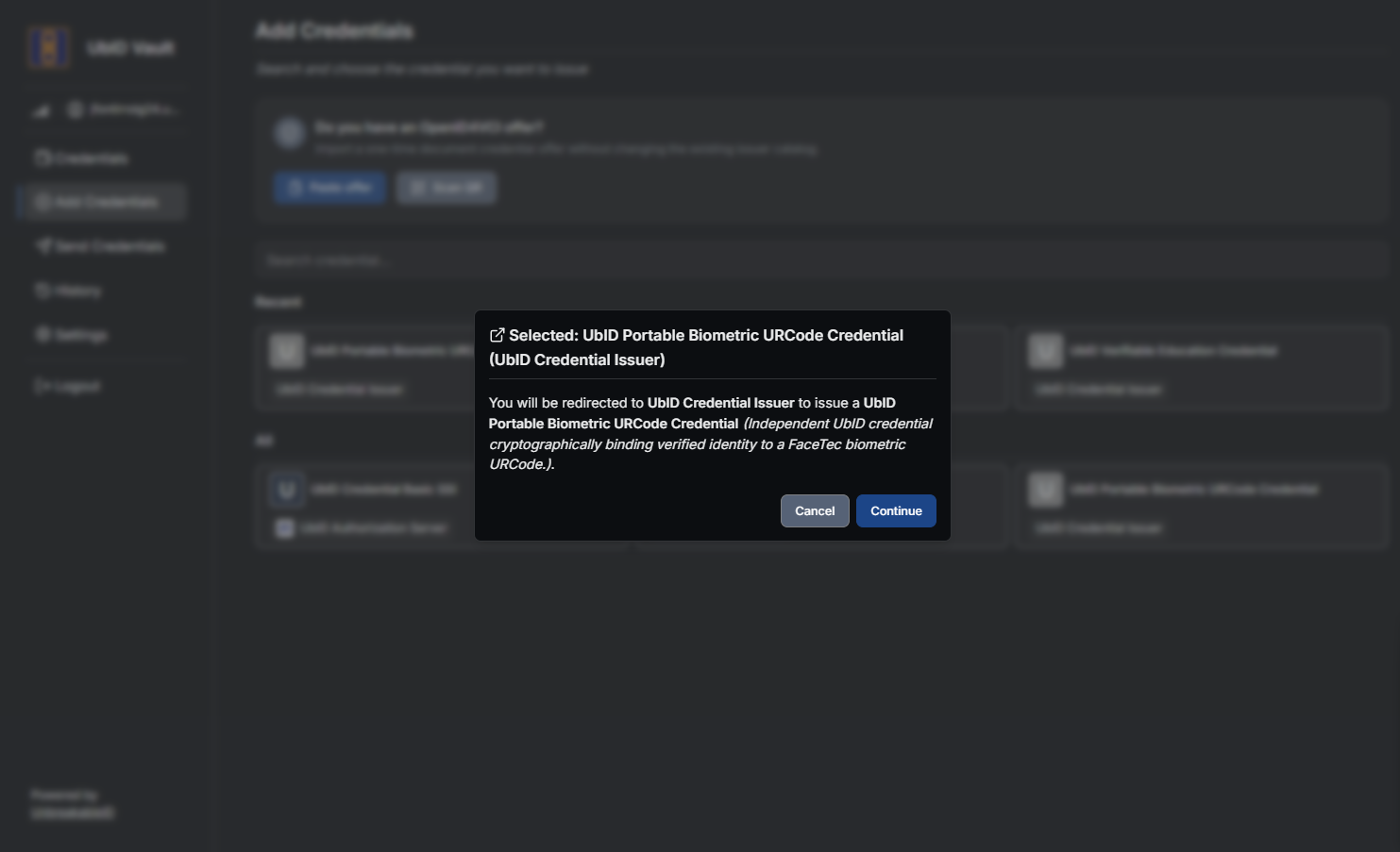
Select Cancel if the name, issuer, or description is unexpected. Select Continue only when you recognize the destination.
Complete Authorization Server consent
The Authorization Server shows the credential that will be returned to Vault. Select the credential card, use Show Details when available, and review the Client and Expiration values before authorizing.
For the Basic SSI flow, the selected digital identity credential is shown on the consent page.
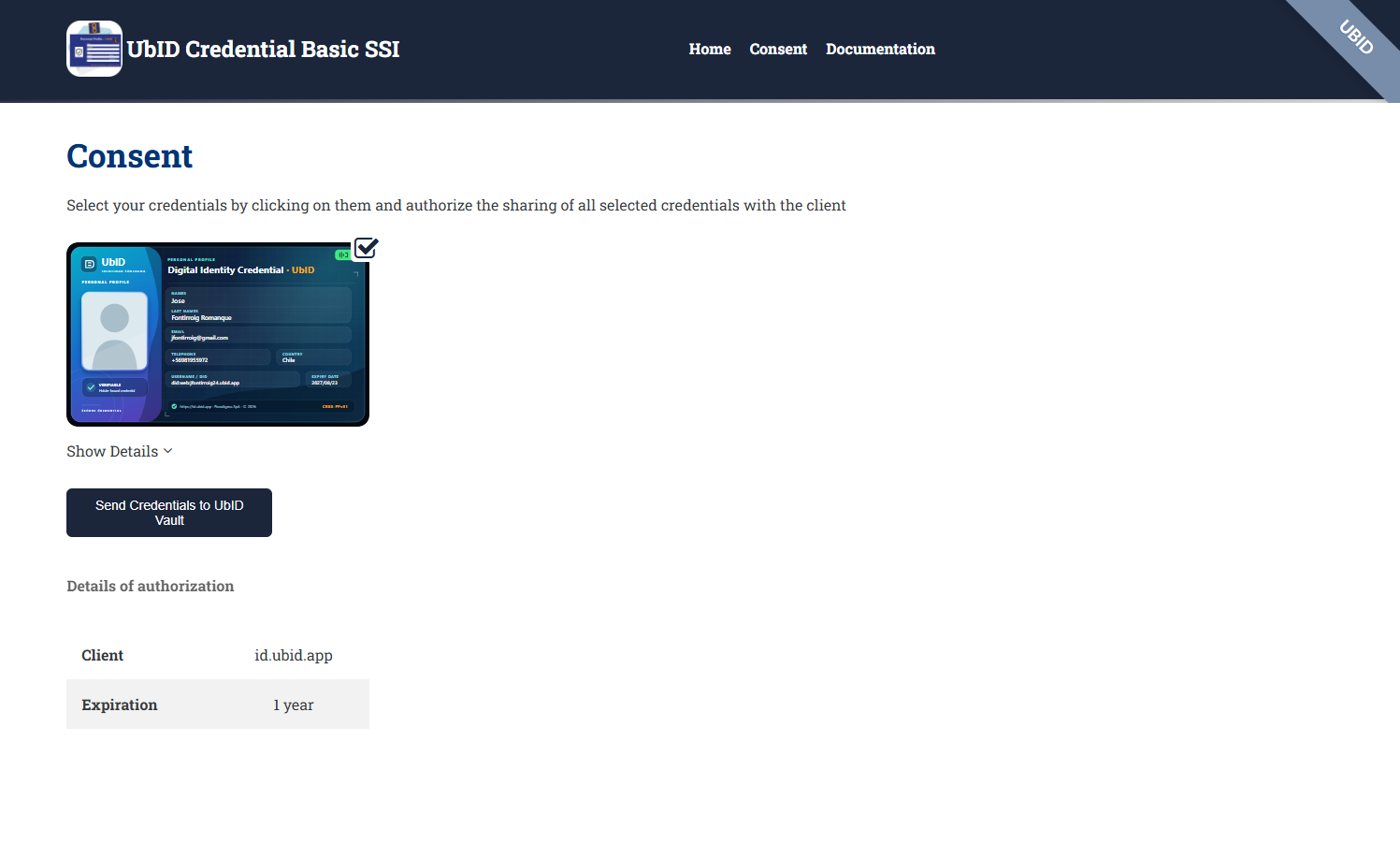
Select Send Credentials to UbID Vault only after confirming that the client is the expected Vault domain. The displayed expiration belongs to the authorization or credential flow; it is not the Vault session duration.
Education and portable biometric credentials
These two credentials use delegated issuance and require exactly one prepared, authorized pending item for the same UbID identity.
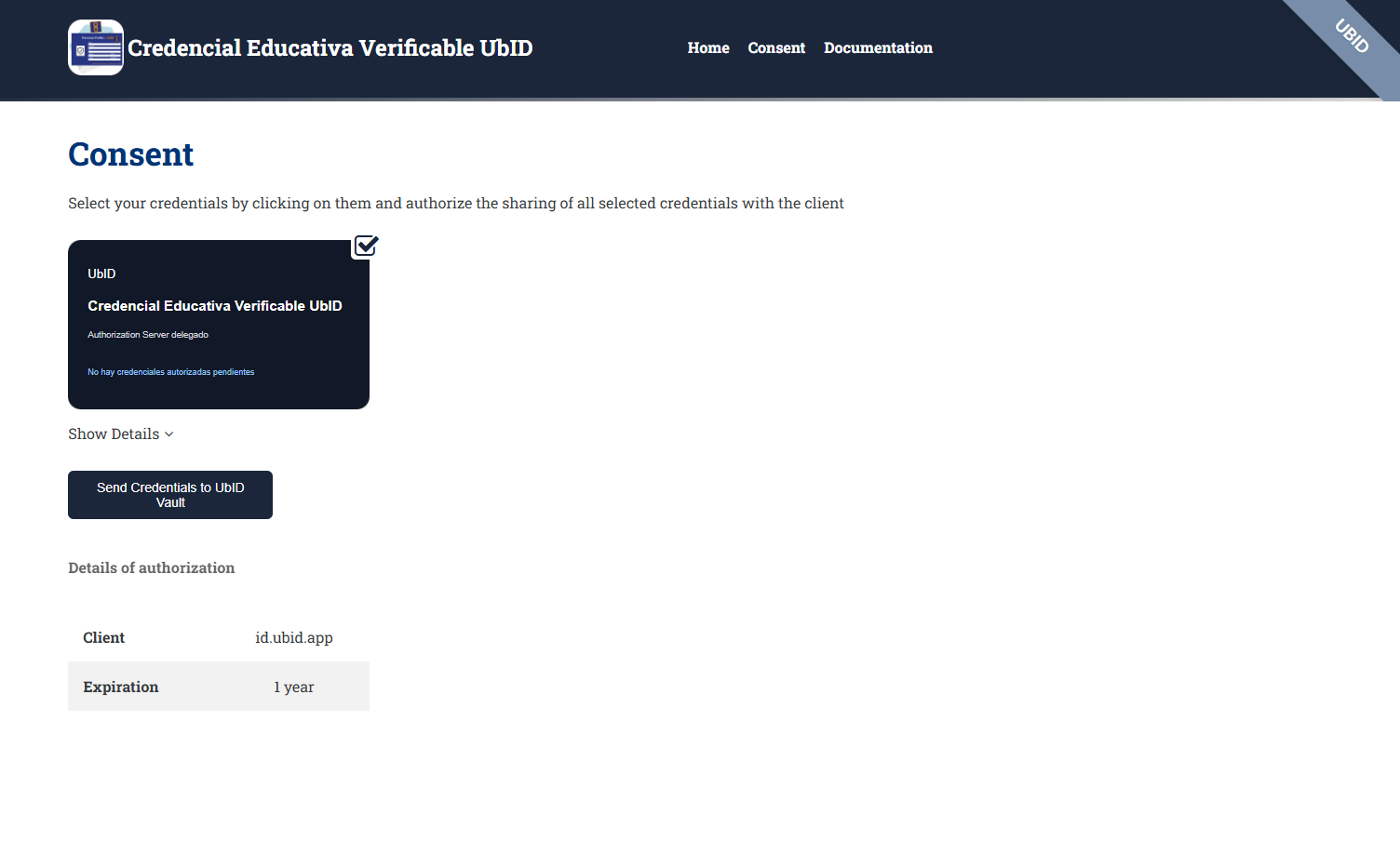
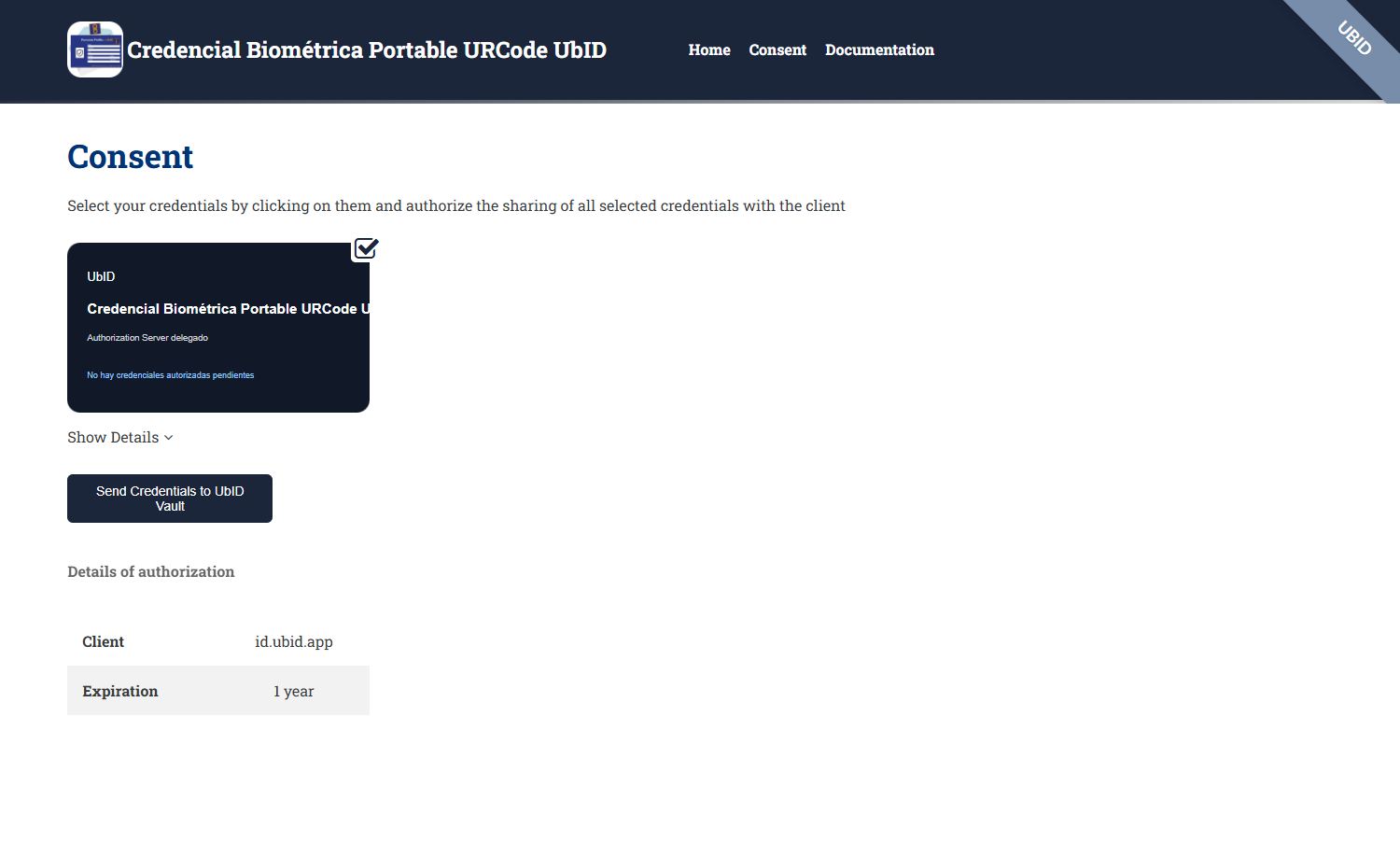
If the card says No hay credenciales autorizadas pendientes or an equivalent message, do not continue: issuance is not ready. Return to Issuer and complete the prerequisite workflow:
- for an education credential, upload and review the corresponding degree or diploma evidence;
- for a portable biometric credential, complete FaceTec enrollment, national-identity verification, and preparation of the portable biometric credential.
Then start the credential again from Vault. The delegated flow verifies that the Vault account, public-profile subject, pending item, credential type, and holder key all match. It does not guess when zero or multiple pending items are available.
Import an OpenID4VCI offer
Use Paste offer for a complete openid-credential-offer://… URI, or Scan QR to read the issuer's offer with the camera.
- Paste or scan the offer supplied directly by the issuer.
- Select Review offer.
- Confirm the issuer, host, credential type, and authorization method.
- If a transaction code is required, obtain it through the issuer's approved channel.
- Select Accept credential.
The pasted offer is kept only in memory and cleared from the form after validation. Vault signs the holder proof internally; the private key does not leave the Vault. One-time offers can expire or be consumed, so request a new offer if validation or issuance fails.
Confirm receipt
After a successful flow, return to Credentials and verify that the new card appears with the expected issuer, subject, and validity period. If it is not visible, refresh once and check that you returned to the same Vault account before repeating issuance.