UbID Vault
UbID Vault is the holder's protected workspace for receiving, reviewing, storing, and presenting verifiable credentials. Access is independent from the Issuer console and is protected by a passkey or another authentication method enabled by the deployment.
The identities, credential data, dates, and domains shown in these images are examples. Never publish a screenshot containing your real credentials unless every visible field has been reviewed.
Open a saved account
When this browser already knows one or more Vault accounts, select the account you want to unlock.
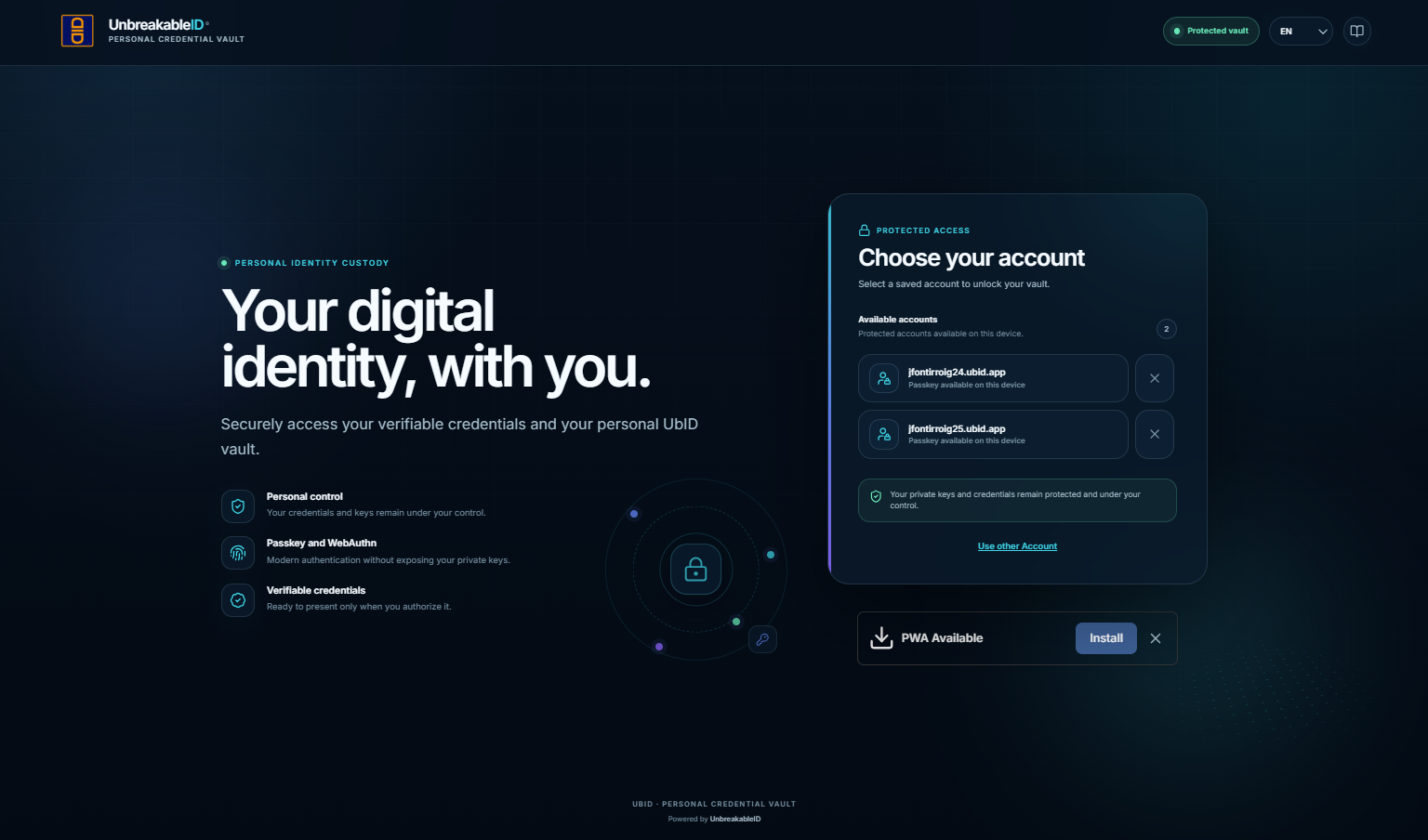
- Confirm the User ID before selecting an account.
- Select the account row and complete the passkey prompt from the browser or operating system.
- Use Use other Account when the required identity is not listed.
The X next to an account forgets only its cached access information on this browser. It does not delete the remote Vault account. Do not use it unless you know how you will authenticate again.
Sign in with a passkey
If no cached account was selected, choose the appropriate passkey method.
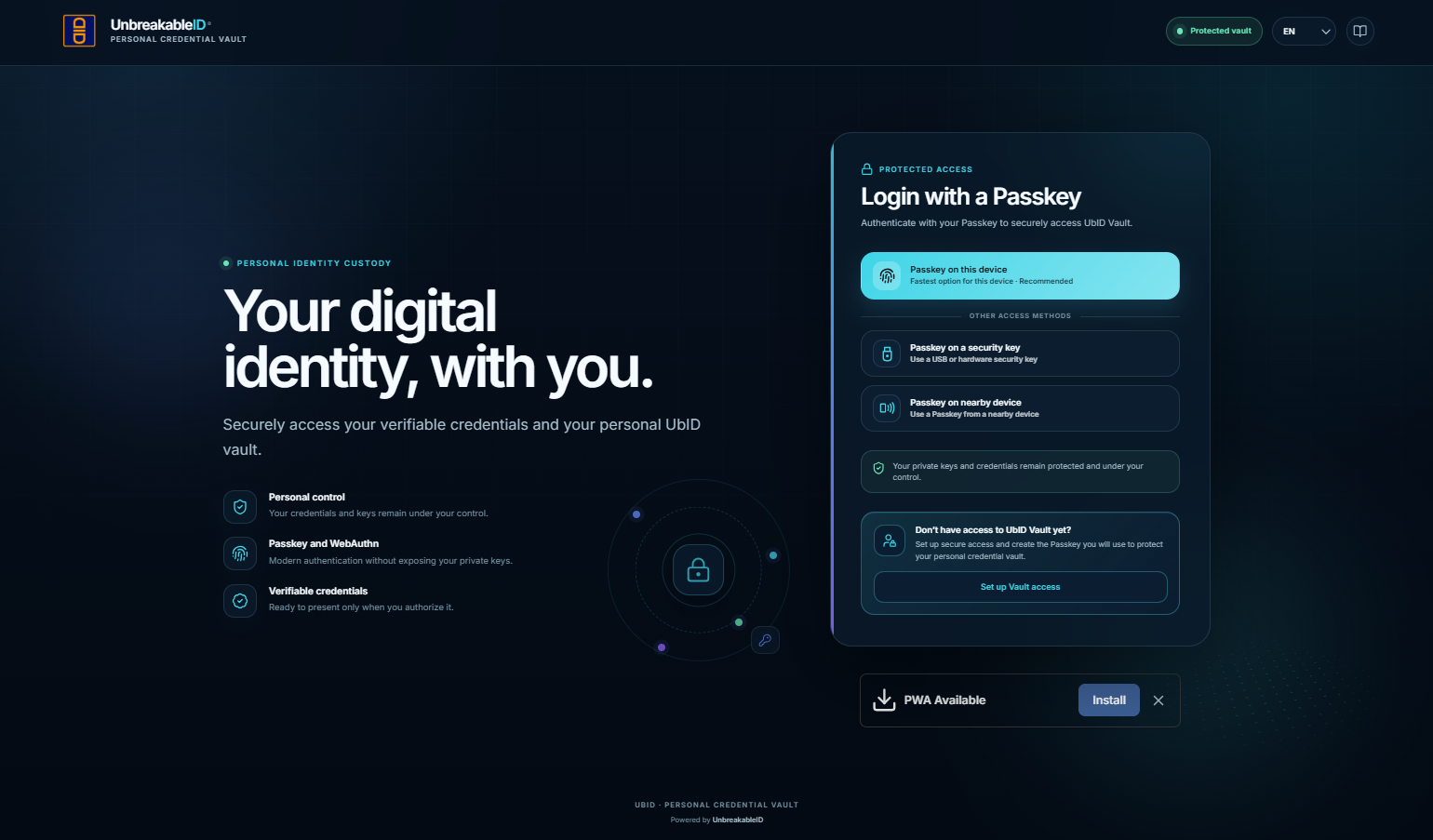
- Passkey on this device: uses the authenticator available on the current device and is the recommended option when it contains the registered passkey.
- Passkey on a security key: uses a compatible USB or hardware security key.
- Passkey on a nearby device: uses a passkey from another device through the browser's cross-device authentication flow.
Follow the browser or operating-system prompt. Depending on the device, confirmation can use fingerprint, face unlock, device PIN, or a security-key gesture. UbID does not receive the raw biometric sample.
If the account has not yet been enabled for Vault, select Set up Vault access, enter a recognizable name, choose a passkey type, and complete registration. The chosen authenticator and browser must support the WebAuthn encryption capability required by Vault; if the compatibility warning appears, use a supported device, browser, or security key.
Before deleting browser data, replacing a device, or removing a passkey, add and test another passkey from Settings. A cached account name is not a recovery method by itself.
Install the Vault application
When PWA Available appears, select Install to add Vault as a Progressive Web App. Installation creates an app shortcut and standalone window; it does not create another account or copy credentials into an unrelated wallet.
The installation prompt depends on browser and device support. If it is dismissed, use the browser's Install app or Add to Home Screen option when available.
Continue with Credentials and presentations.