Reset a forgotten password
Use Forgot your password? when you cannot remember the password for an existing UbID account. The procedure sends a secure link to the email address already associated with the selected identity. It does not register a new identity.
The screenshots were captured in English and Spanish. The position and purpose of the controls are the same when the UbID interface is displayed in another supported language.
Before you start
Make sure that:
- You are using a trusted device and browser.
- The correct UbID identity appears in the local identity selector.
- You can open the email account registered for that identity.
- You will create a unique password that you do not use on another service.
The reset link is security-sensitive and may expire. Do not forward it, publish it, or send it to someone claiming to be UbID support.
Reset the password
1. Open password recovery
On the UbID sign-in page, select the local identity and choose Forgot your password?.
UbID opens Recover password. Select the identity under Self-Sovereign Identity. The User ID and registered Email are loaded automatically and cannot be edited on this screen.
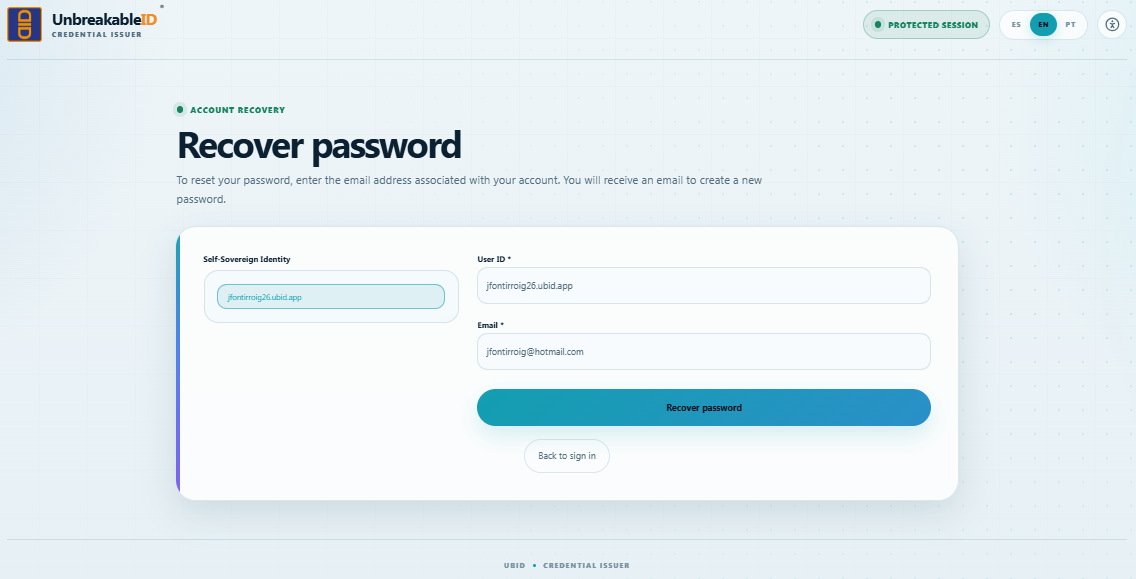
Verify that the selected identity and the masked or displayed email belong to the account you want to recover.
If the details are correct, select Recover password. If they are not correct, return to sign-in and select the intended identity.
2. Confirm that the email was sent
UbID displays Email sent after accepting the request.

Select Accept, then check the inbox of the registered address. Also check the spam or junk folder if the message is not visible.
3. Verify the recovery email
Open the password-reset message. Confirm that:
- The sender is UbID using the expected
no-reply@ubid.appaddress. - The message refers to the correct User ID.
- You initiated the password-reset request.
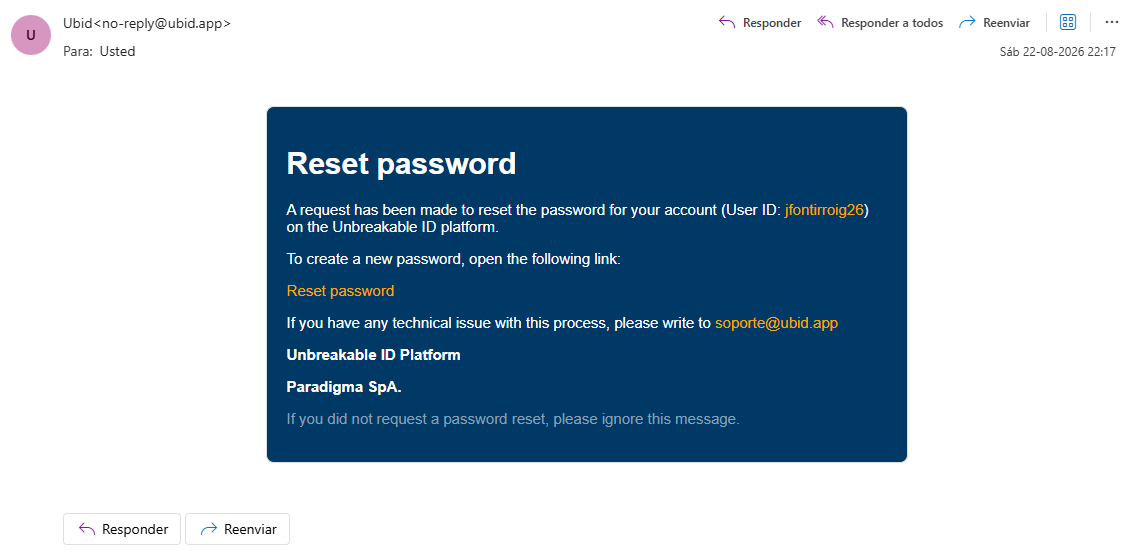
The User ID and email address shown in the screenshots are examples. Your message will contain the data for your own account.
If you did not request the reset, do not open the link. Ignore the message and contact the authorized UbID support channel if you suspect unauthorized activity.
4. Open the secure reset link
In the message, select Reset password.
The link opens the secure UbID password-reset page. If UbID reports that the link is invalid or expired, return to Forgot your password? and request a new message.
5. Create the new password
On Reset password, complete both fields:
| Field | What to enter |
|---|---|
| New password | A new password between 6 and 80 characters. Use a strong, unique value. |
| Confirm password | Enter the new password again exactly. Pasting into this confirmation field is disabled. |
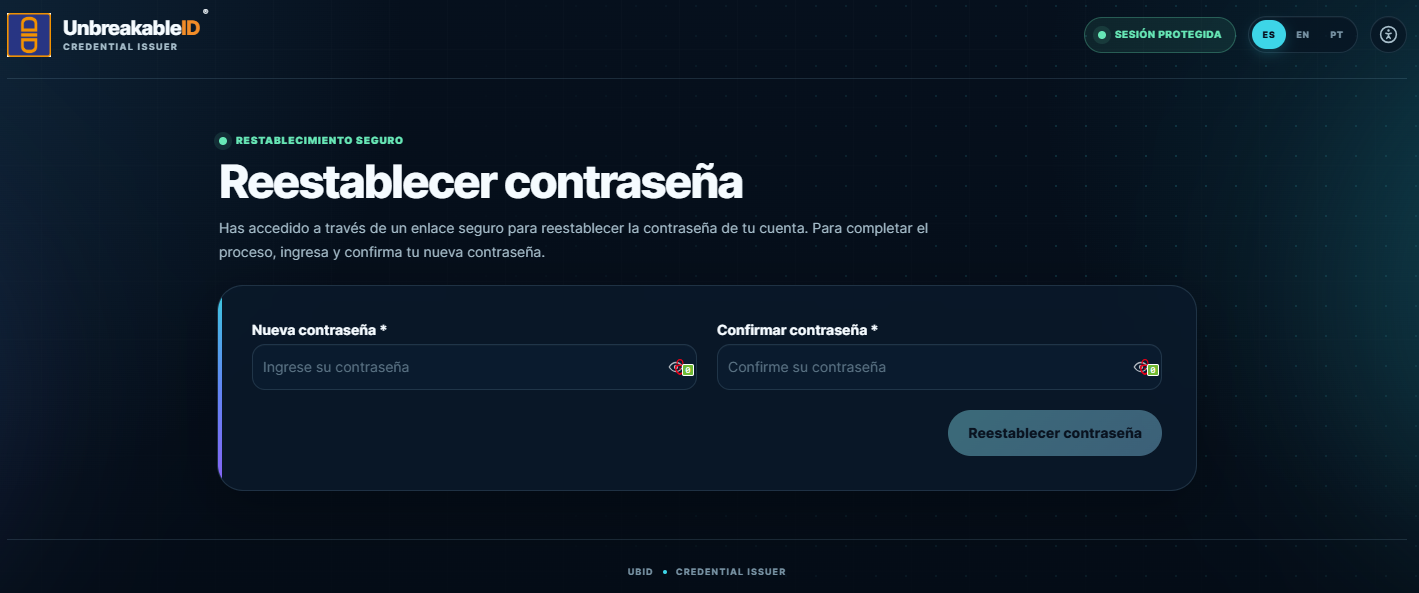
The Reset password button becomes available when both fields contain the same valid value. Select it once and wait for the result; do not close or reload the page while the request is being processed.
6. Return to sign-in
When the change is complete, UbID displays a confirmation that the password was created successfully.

Select Back to sign in and use the new password from then on.
Password reset and the local identity
Changing the account password and recovering the encrypted local identity are related but different operations. Depending on the active protection policy, UbID may attempt to recover and protect the local identity with the new password and may request FaceTec verification.
The password can be changed successfully even if that additional local operation cannot finish. If the next sign-in reports that the local identity is missing or unreadable, do not create another account. Continue with Local keys, backup, and recovery.
Common problems
| Situation | What to do |
|---|---|
| No identity appears in the selector | Use the procedure in Local keys, backup, and recovery or contact the authorized support channel. Do not create a duplicate identity. |
| The registered email is not accessible | Stop the procedure and contact authorized support. The recovery email cannot be redirected from this screen. |
| The email does not arrive | Check spam or junk, wait a few minutes, confirm that you selected the correct identity, and then submit a new request only once. |
| The link is invalid or expired | Return to Forgot your password? and request a new email. Use only the most recent valid link. |
| Reset password remains disabled | Enter 6 to 80 characters and make sure both password fields match exactly. |
| The password changed, but the local identity is missing | Follow Local keys, backup, and recovery. Password reset alone does not recreate a missing browser copy. |