UbID Verifier
UbID Verifier lets an application request proof from one or more verifiable credentials. The holder reviews the requesting party, purpose, credential, and disclosed fields in UbID Vault before authorizing the presentation.
The screenshots in this section show API Solutions, a reference relying-party application. Names, domains, identifiers, dates, and credential data are examples; another integrated service may use different branding or request a different policy.
What happens during verification
- The user selects Login or another verification action in the client application.
- Verifier creates an OpenID4VP presentation request containing the policy and the requested claims.
- The user opens the request in UbID Vault, reviews it, and chooses a matching credential.
- Vault shows the exact fields to be disclosed and asks for final authorization.
- Verifier validates the presentation, including holder binding, issuer signature, intended audience, requested disclosures, validity, and the applicable policy.
- The client application receives a controlled verification result and creates its own local session.
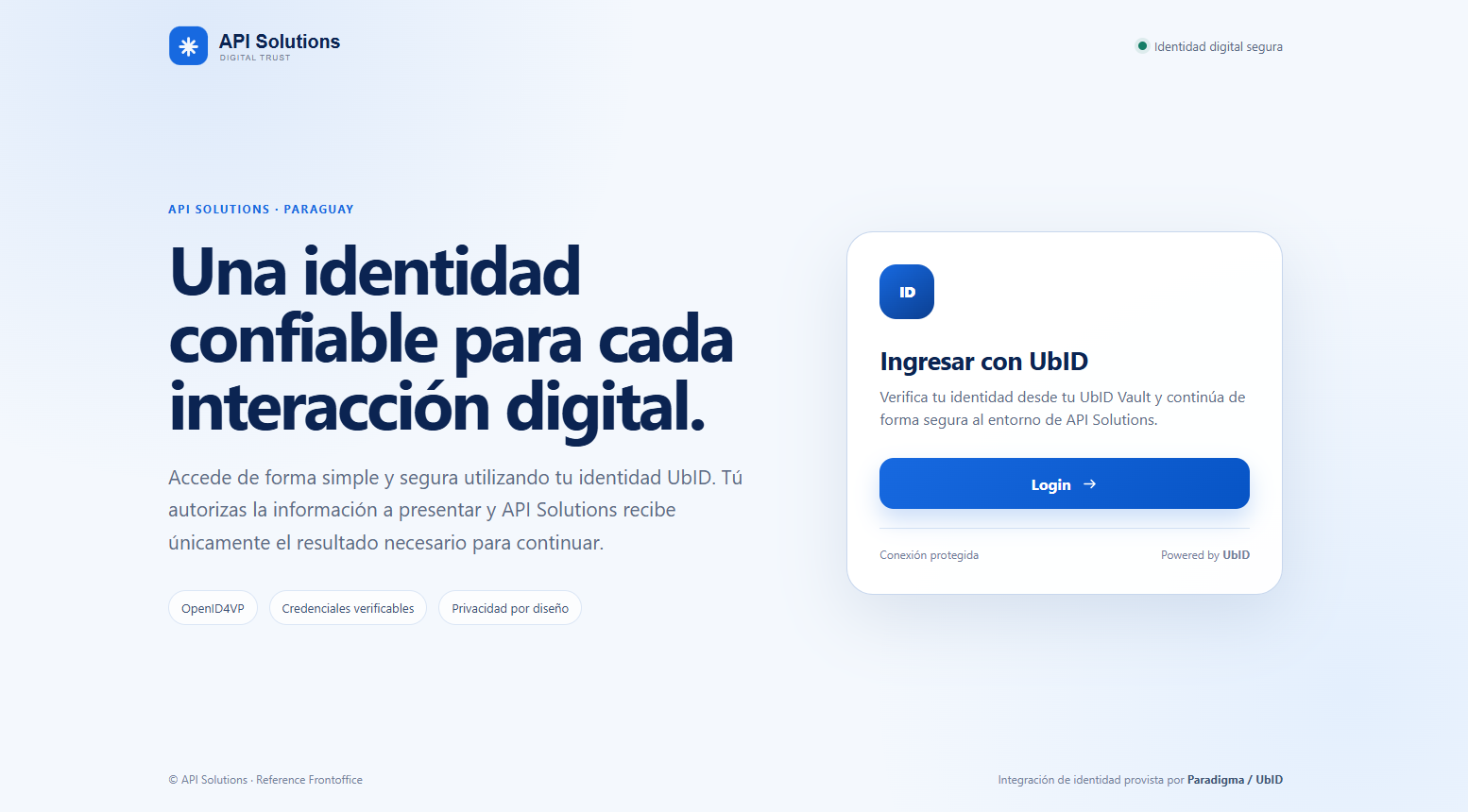
Select Login only when you recognize the application and expected to verify your identity. The tags shown on this example page—OpenID4VP, verifiable credentials, and privacy by design—describe the integration; they are not buttons or credentials.
Privacy and control
- The application defines the information it needs, but the holder sees the request before sharing.
- Vault displays the selected credential and the individual fields requested by Verifier.
- Canceling in Vault stops that presentation; it does not delete the credential.
- In the trusted integration, the browser returns only short-lived correlation data. Credential claims are not placed in the callback URL.
- The client creates a server-side session only after validating the signed verification result.
Do not continue if the requesting party, purpose, credential type, or disclosed fields are unexpected. Cancel and restart from the legitimate client application.
Continue with Present and authorize credentials.