Credentials and presentations
After unlocking Vault, the Credentials page displays the credentials available to the selected account.
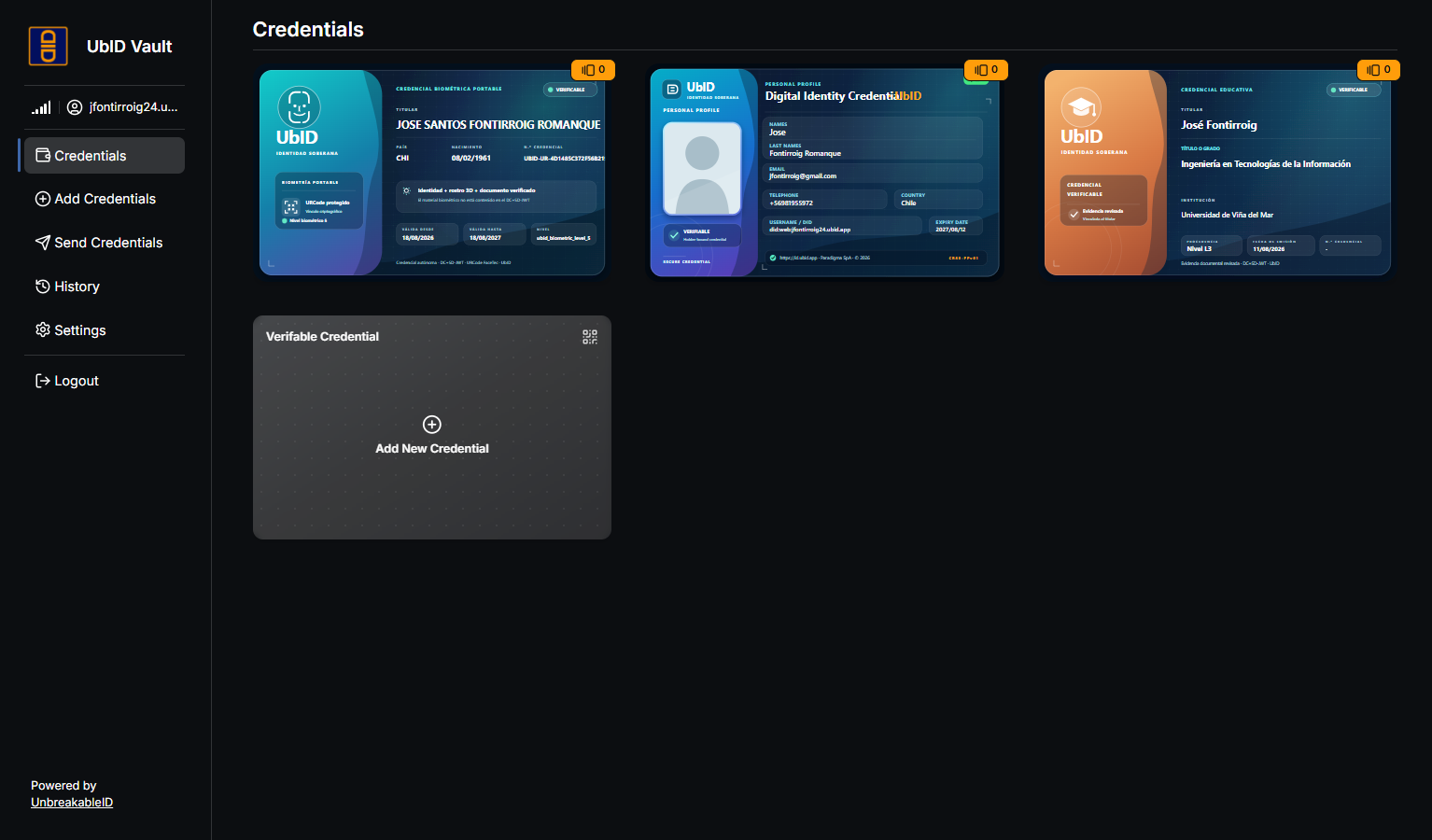
Review a credential
Select a credential card to open its information. Depending on its format, Vault can show the credential's display data, signed claims, status, presentation history, and technical details.
Before using a credential, verify:
- the credential type and issuer;
- the subject name or identifier;
- issuance and expiration dates, when present;
- any expired, revoked, pending, or warning indicator.
The Add New Credential card opens the same flow as Add Credentials in the sidebar.
Credential deletion is a separate action inside its detail view and requires confirmation. Deleting the local Vault copy does not ask the original issuer to reissue it. Make sure you can obtain the credential again before confirming.
Send credentials
Open Send Credentials when you want to start from a known verifier:
- Search for and select the verifier.
- Review the confirmation showing the destination.
- Select Continue to open the verifier's presentation request.
- Review the requested attributes and selected credentials.
- Authorize only the information you intend to disclose.
The verifier list and available presentation methods depend on the deployment. If a request arrived through a QR code or deep link, Vault may open the consent flow directly instead.
See the complete cross-application sequence in Present and authorize credentials.
Review History
Open History to review credential transmissions. Each OpenID4VP transaction records the verifier audience, date and time, and the credential or credentials included in that presentation. Select an entry to inspect its details.
History helps you remember what was presented; it does not revoke data already received by a verifier. Contact the verifier if a presentation was sent to the wrong destination.
Sign out
Select Logout when you finish. Signing out closes the active Vault session but does not delete the account, credentials, registered passkeys, or cached account selector. On a shared device, also close the browser or installed PWA window.
To receive another credential, continue with Add credentials.