Documents and evidence
Open Vault & Credentials → My documents to store original documents and verification evidence in the protected document workspace.
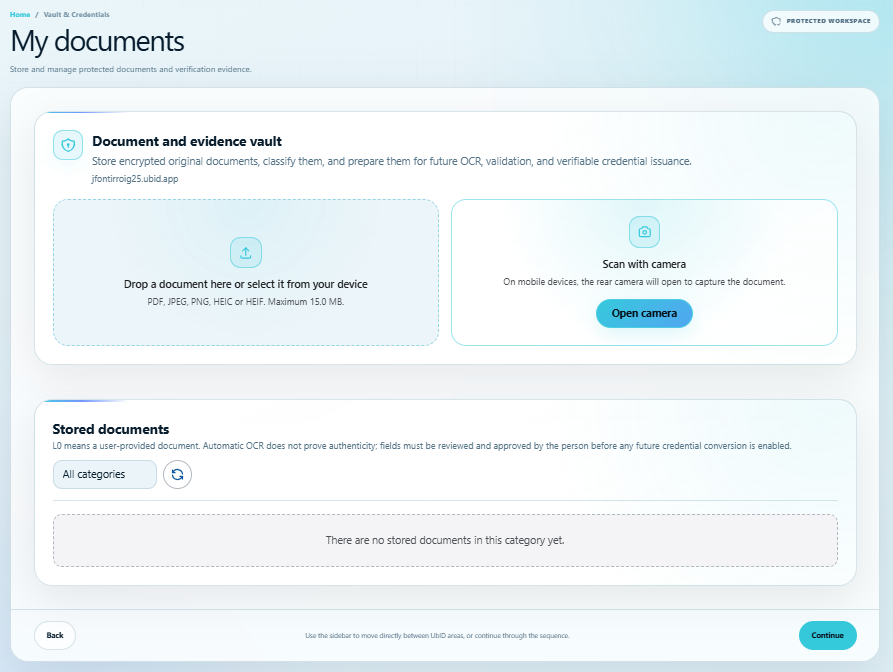
Add a document
Choose one method:
- Drag a file into the upload area or select it from the device.
- On a compatible device, select Open camera and capture the document.
Accepted formats are PDF, JPEG, PNG, HEIC, and HEIF, with a maximum size of 15 MB per file. After selection, review the title, choose a category, add optional tags, and select the storage button.
Available categories include health, education, employment, CV, travel, identity, financial, legal, certification, family, and other.
Manage stored documents
Use the category filter and refresh control to find stored items. A document card can show file size, source, page count, quality, OCR status, classification, provenance, verification, and credential-preparation status.
Depending on its state, you can:
- Start or repeat OCR.
- Review and correct extracted information.
- Open the evidence/verification workflow.
- Prepare a future verifiable credential after the required review and authorization.
- Download the original or remove it from the Vault.
A stored file is user-provided. OCR and automatic classification help extract and organize data, but they do not prove that the document is authentic. Review the fields and complete the explicit verification and approval steps before relying on them or authorizing credential issuance.
Uploading a PDF or image does not automatically create a verifiable credential. See Store documents and add credentials for the distinction between documents and issuer-signed credentials.