Biometrics and portable credentials
The Verification & Biometrics section contains dependent workflows. Complete them in order: facial enrollment, national identity verification, and then portable credential issuance when required.
Facial Biometrics
Open Verification & Biometrics → Facial Biometrics.
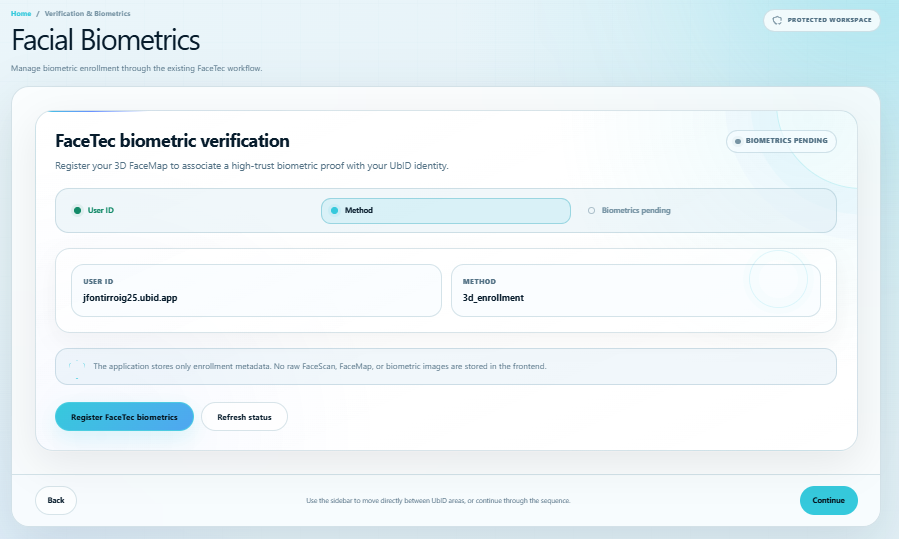
- Confirm the User ID and current status.
- Select Register FaceTec biometrics.
- Allow camera access and follow the FaceTec 3D enrollment prompts.
- Return to the intranet and select Refresh status if needed.
The frontend stores enrollment metadata only. It does not retain raw FaceScan, FaceMap, or biometric images. See Biometrics, passkeys, and facial enrollment for capture recommendations.
National Identity Biometrics
Open Verification & Biometrics → National Identity Biometrics.
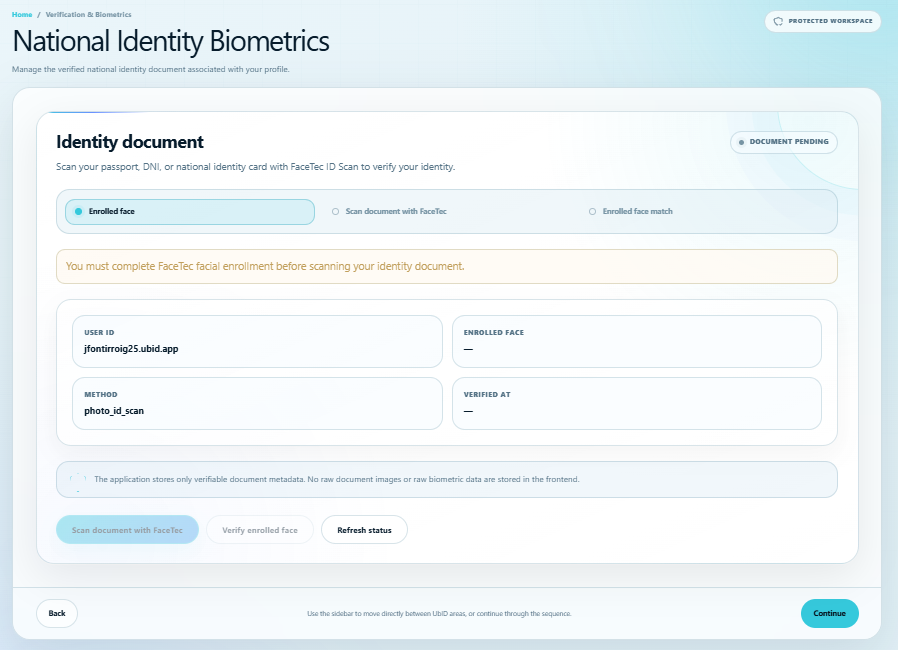
FaceTec facial enrollment must already be complete. The workflow then proceeds through:
- Enrolled face — verifies the prerequisite.
- Scan document with FaceTec — captures a passport, DNI, or supported national identity card.
- Verify enrolled face — matches the document holder with the enrolled identity.
Use Refresh status after returning from a capture. Depending on the document and provider, the result can report OCR, barcode, NFC, tamper checks, face match, verified personal data, and SD-JWT status. The frontend retains verification metadata, not raw document or biometric images.
Issue Portable Biometric Credential
Open Verification & Biometrics → Issue Portable Biometric Credential.
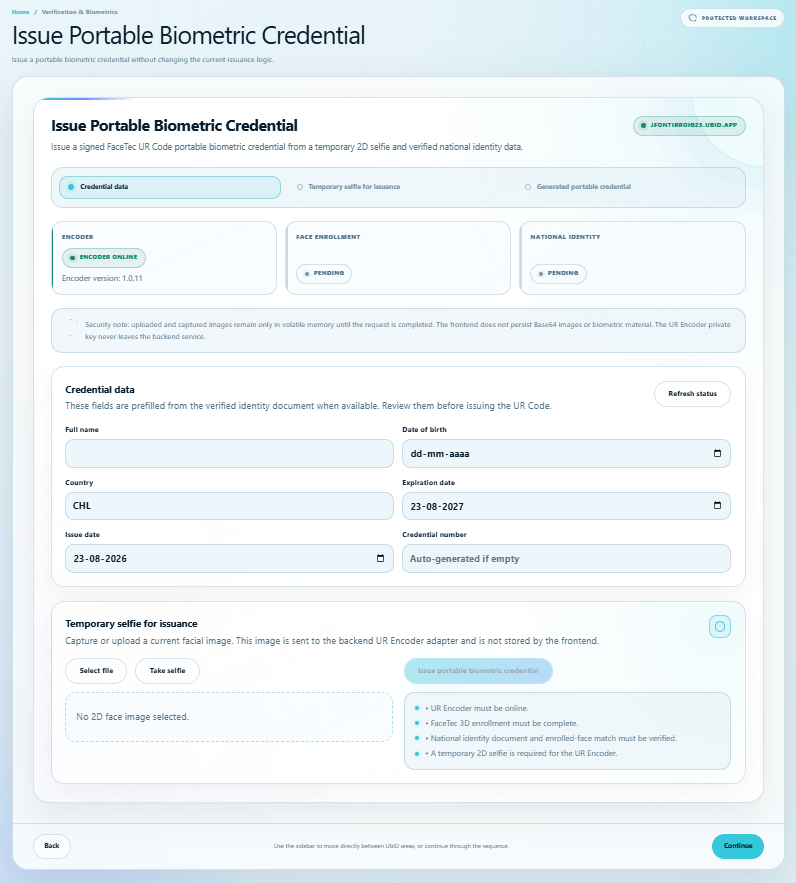
The issuance button is enabled only when:
- The UR Encoder is online.
- FaceTec enrollment is complete.
- The national identity document and enrolled-face match are verified.
- Full name and date of birth are present.
- A current temporary 2D selfie has been selected or captured.
Review the credential data prefilled from the verified document. Confirm country, issue and expiration dates, and the credential number; if the number is empty, the service can generate it. Use a sharp frontal selfie with even lighting, then select Issue portable biometric credential.
Input images remain in volatile browser memory for the request and are not persisted by the frontend. The UR Encoder private key remains in the backend service. When issuance succeeds, use Add to Vault; the normal Wallet Enterprise Issuer flow completes the formal credential after the Vault proves possession of its key. A legacy OpenID4VCI offer is an alternative only when specifically required.
Verify Portable Biometric Credential
Open Verification & Biometrics → Verify Portable Biometric Credential.
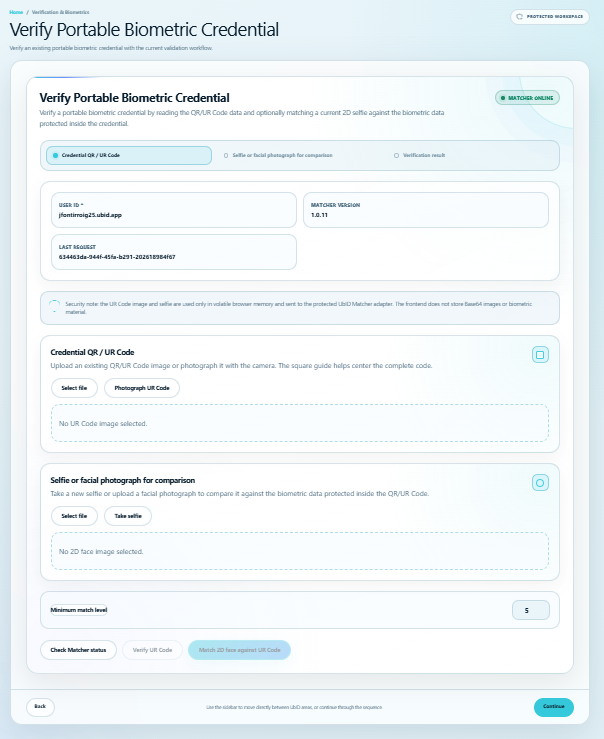
- Confirm that the Matcher reports online.
- Upload or photograph the complete credential QR/UR Code.
- To compare the holder, upload or capture a current frontal selfie.
- Choose the required Minimum match level from 1 to 6 according to the relying party's policy.
- Select Verify UR Code data for credential validation or Compare selfie against UR Code for the 2D-to-2D match.
The screen reports verification, URID, match result, achieved level, template, processing time, and available credential metadata. The QR/UR image and selfie are used in volatile browser memory and sent to the protected Matcher adapter; the frontend does not persist their Base64 data or biometric material.